Blankwall
VIEW IN ROOM
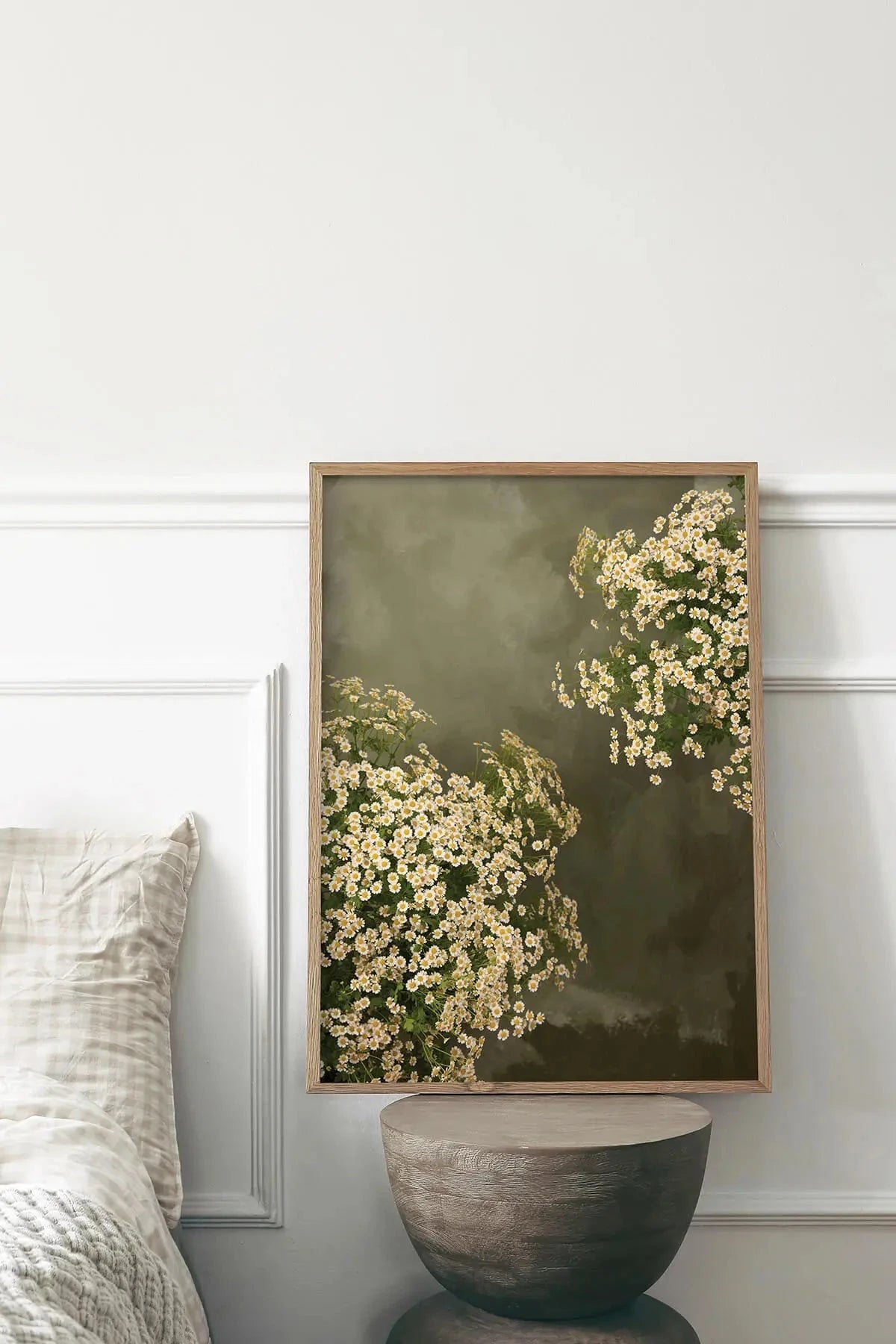
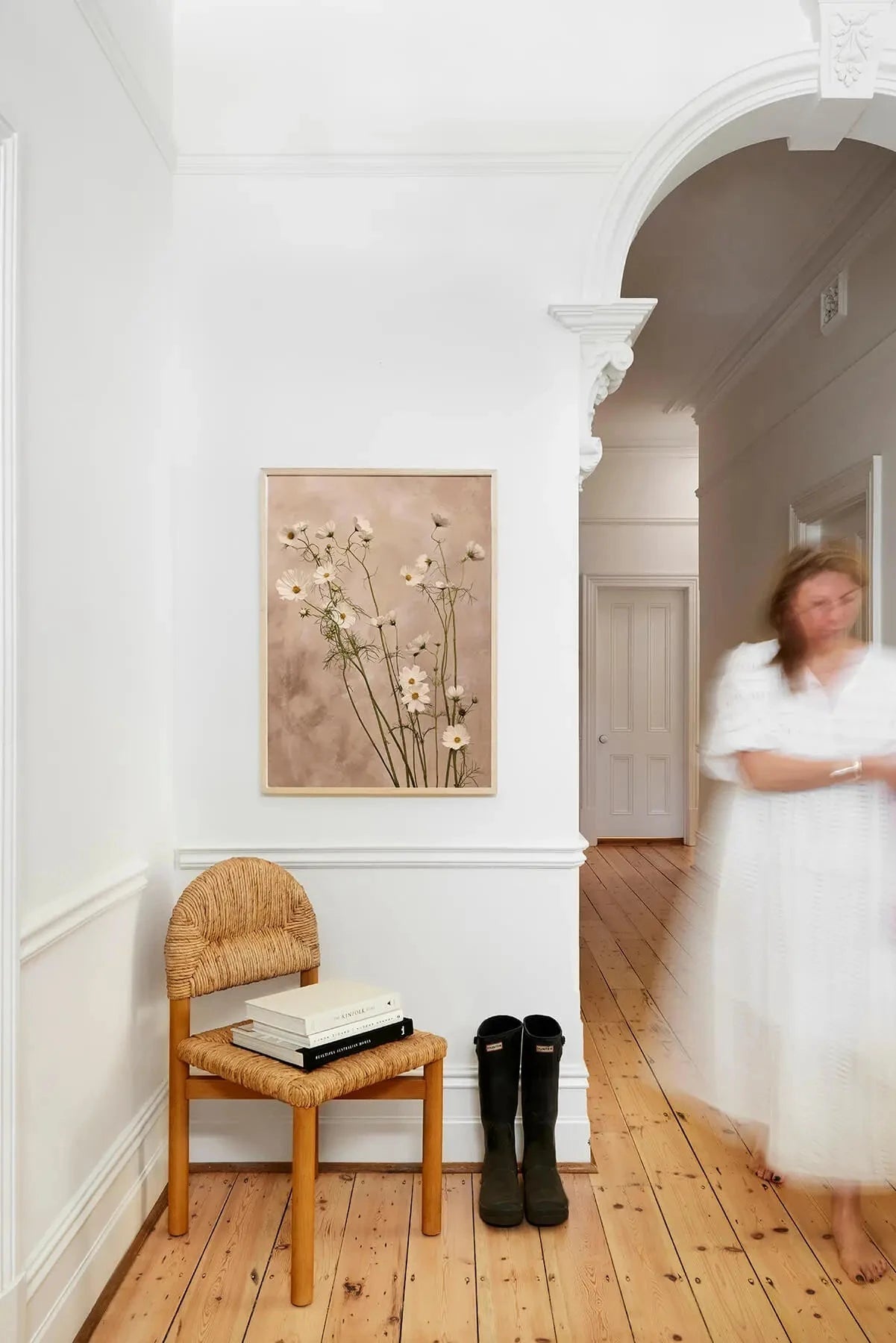
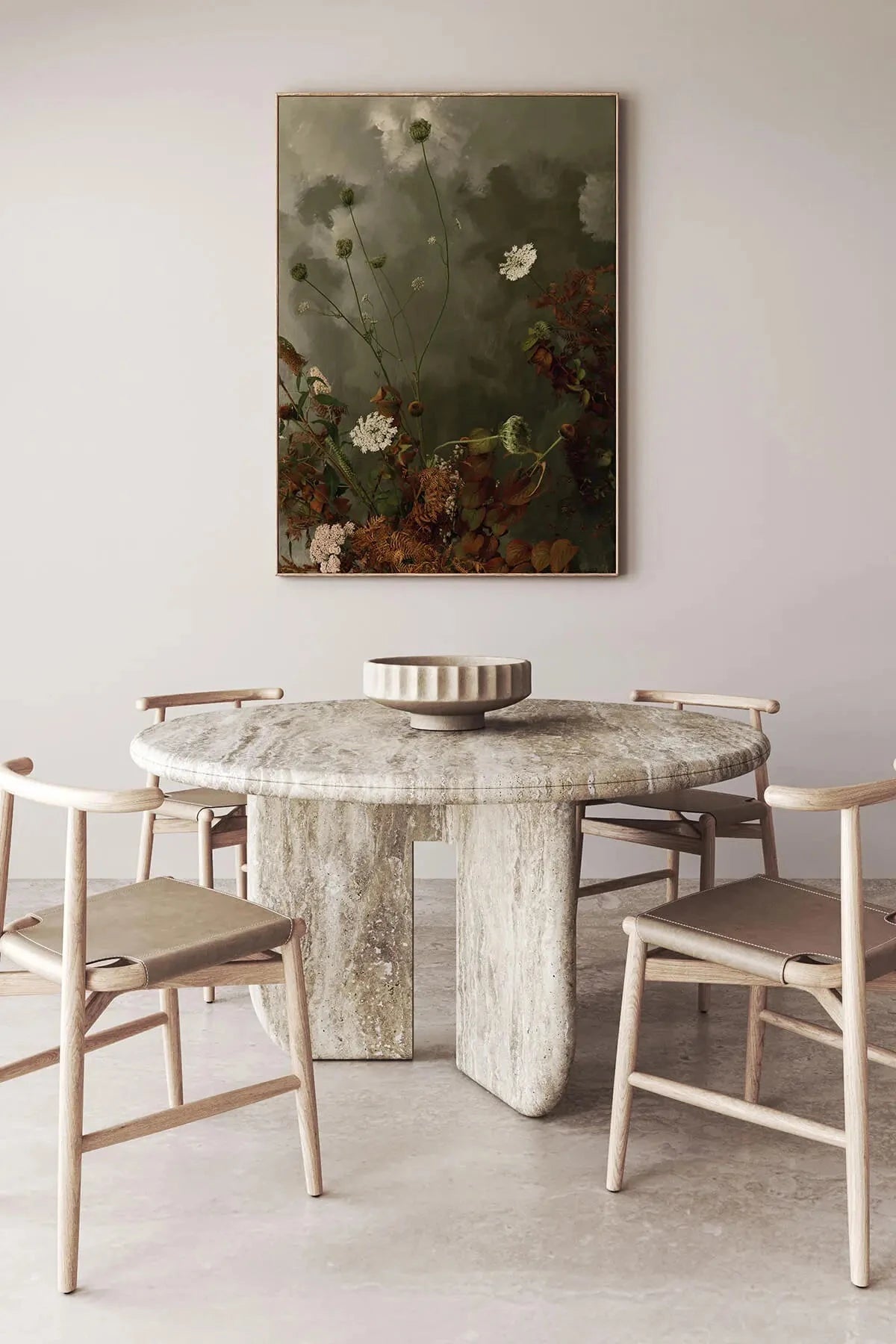
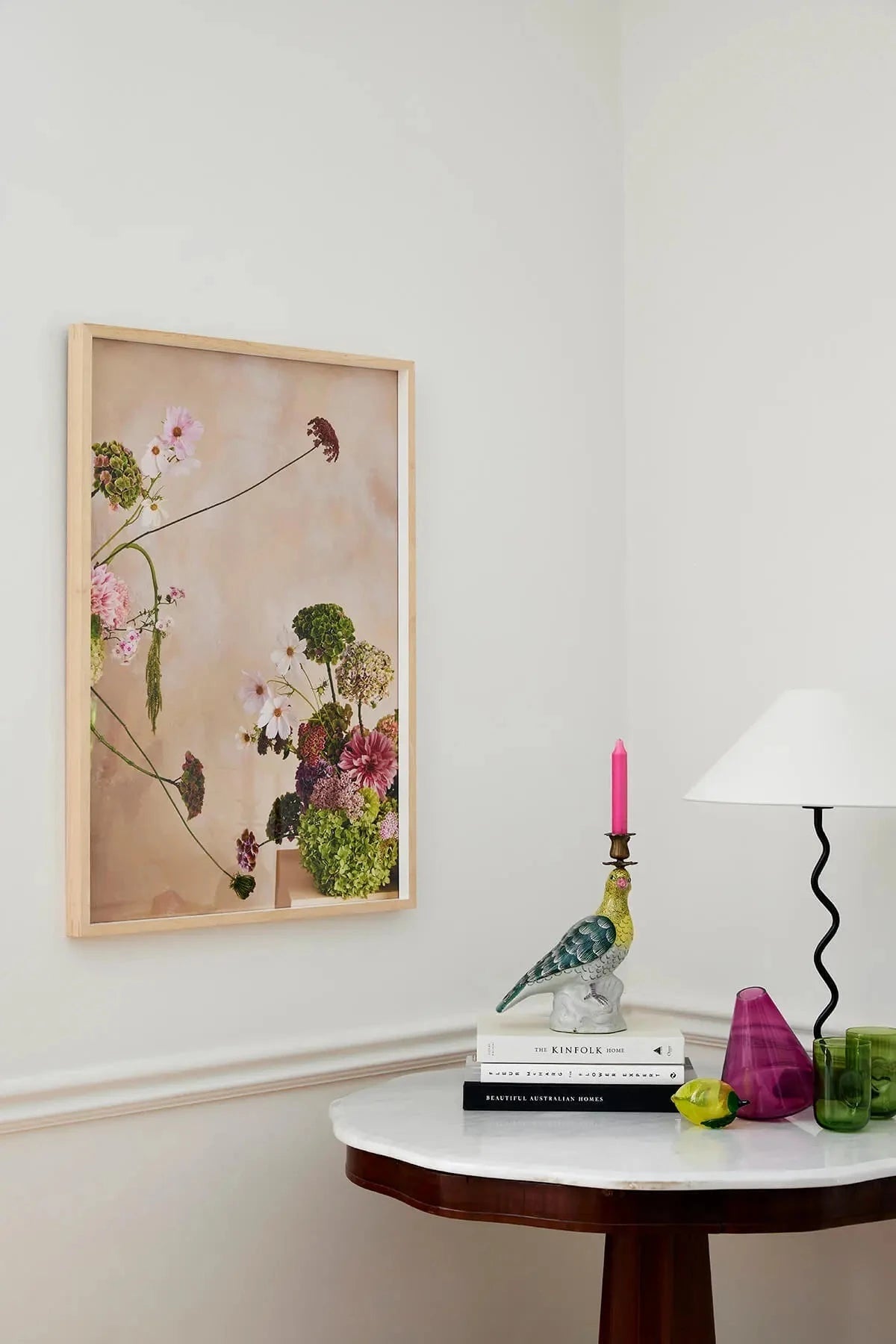
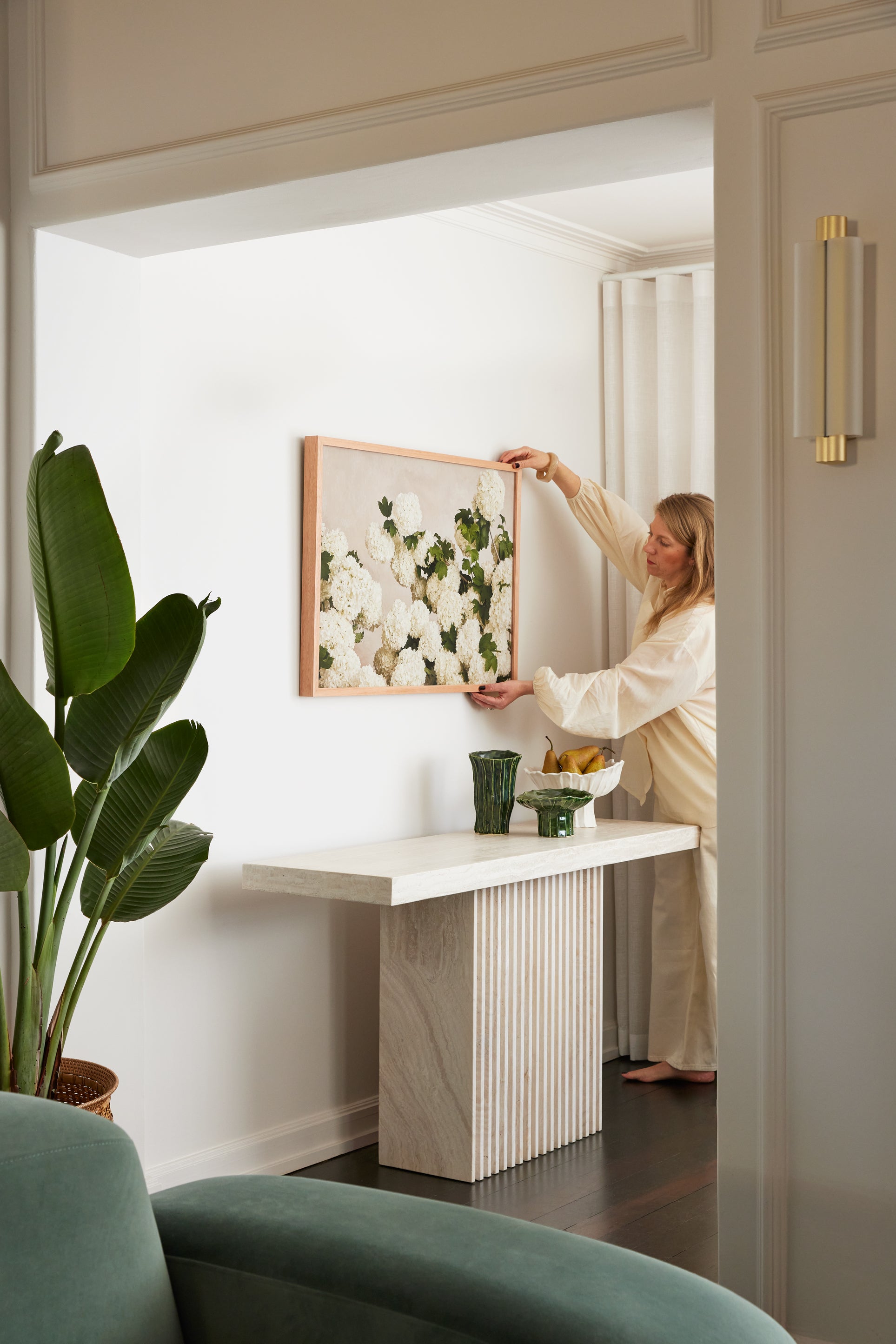
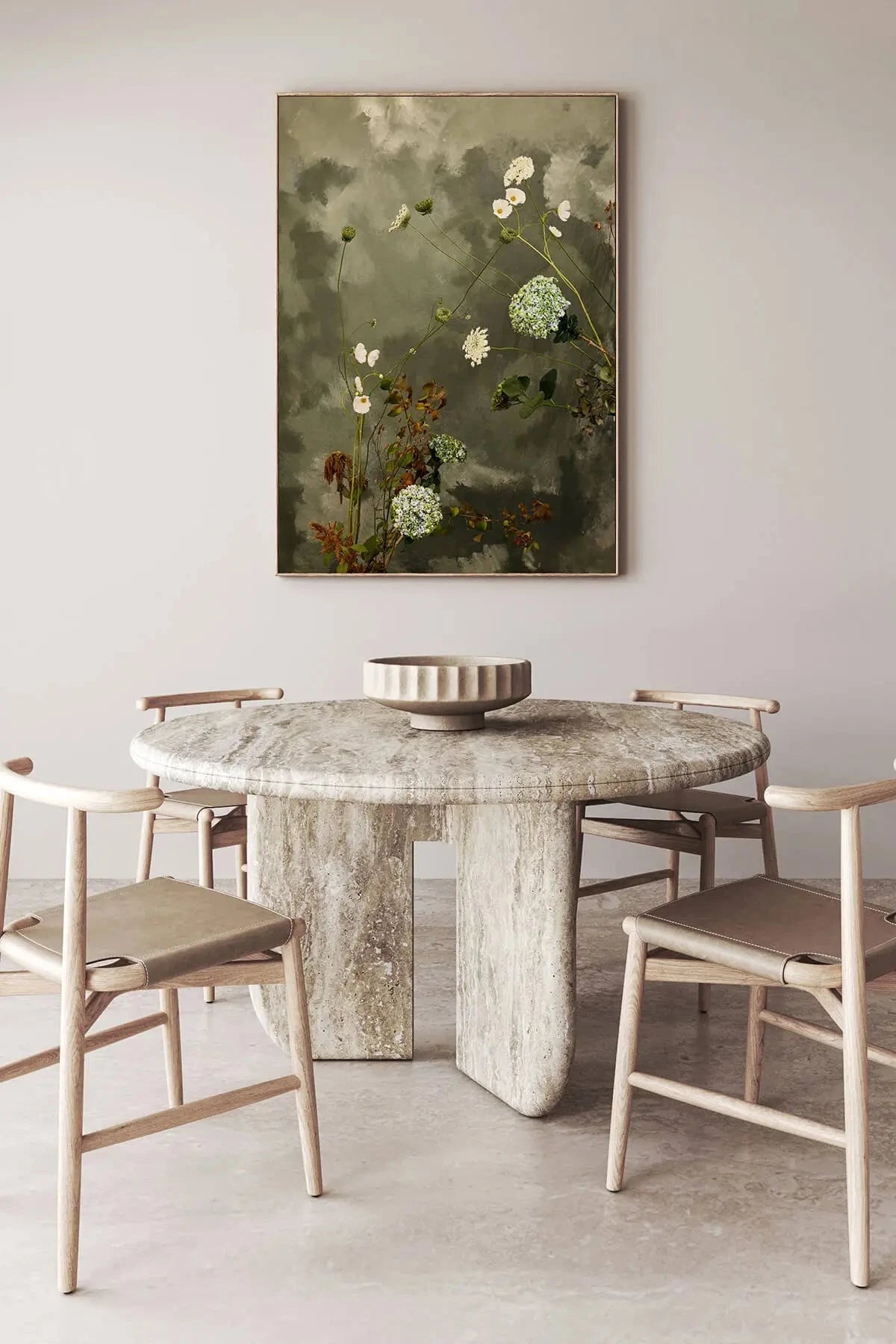
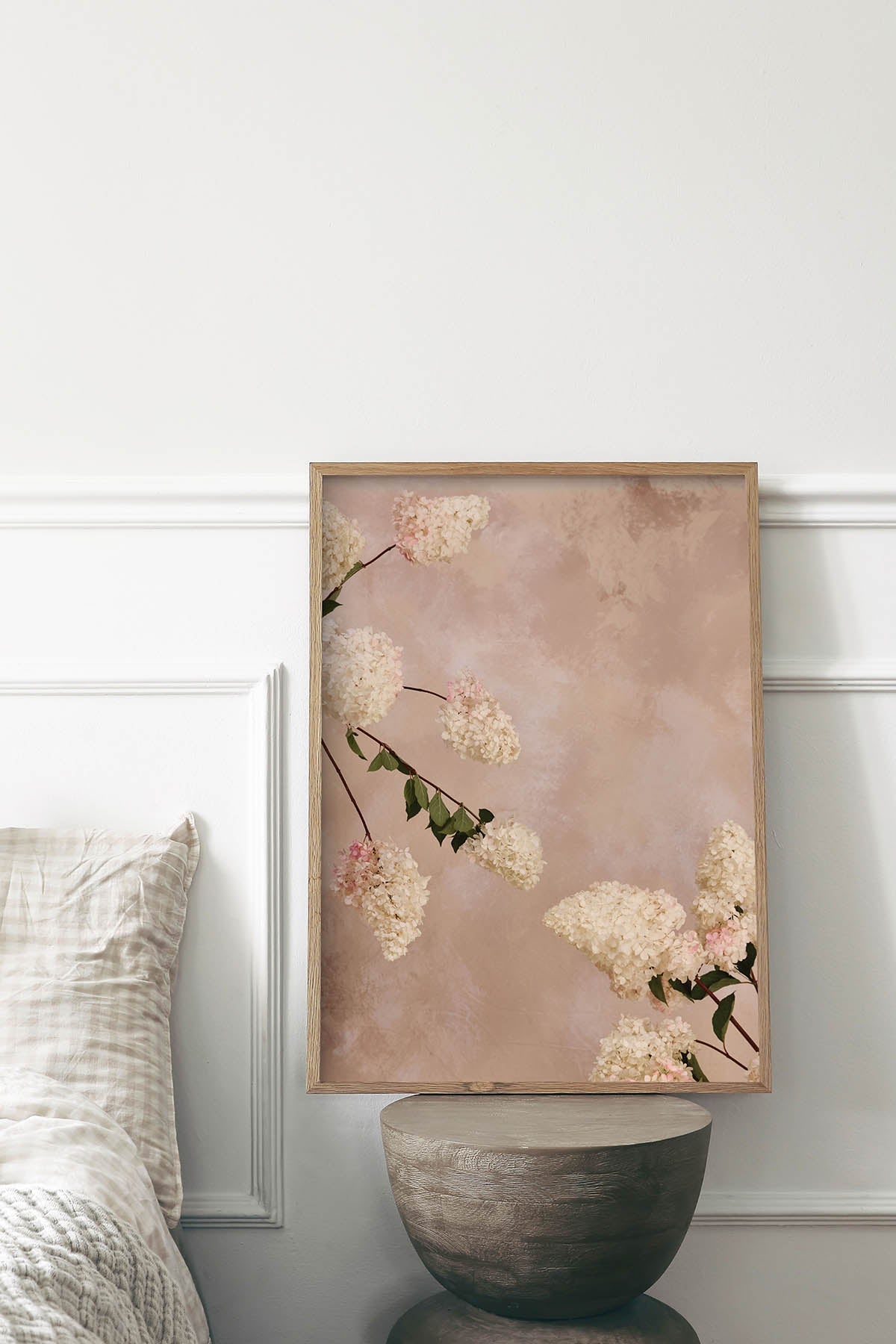
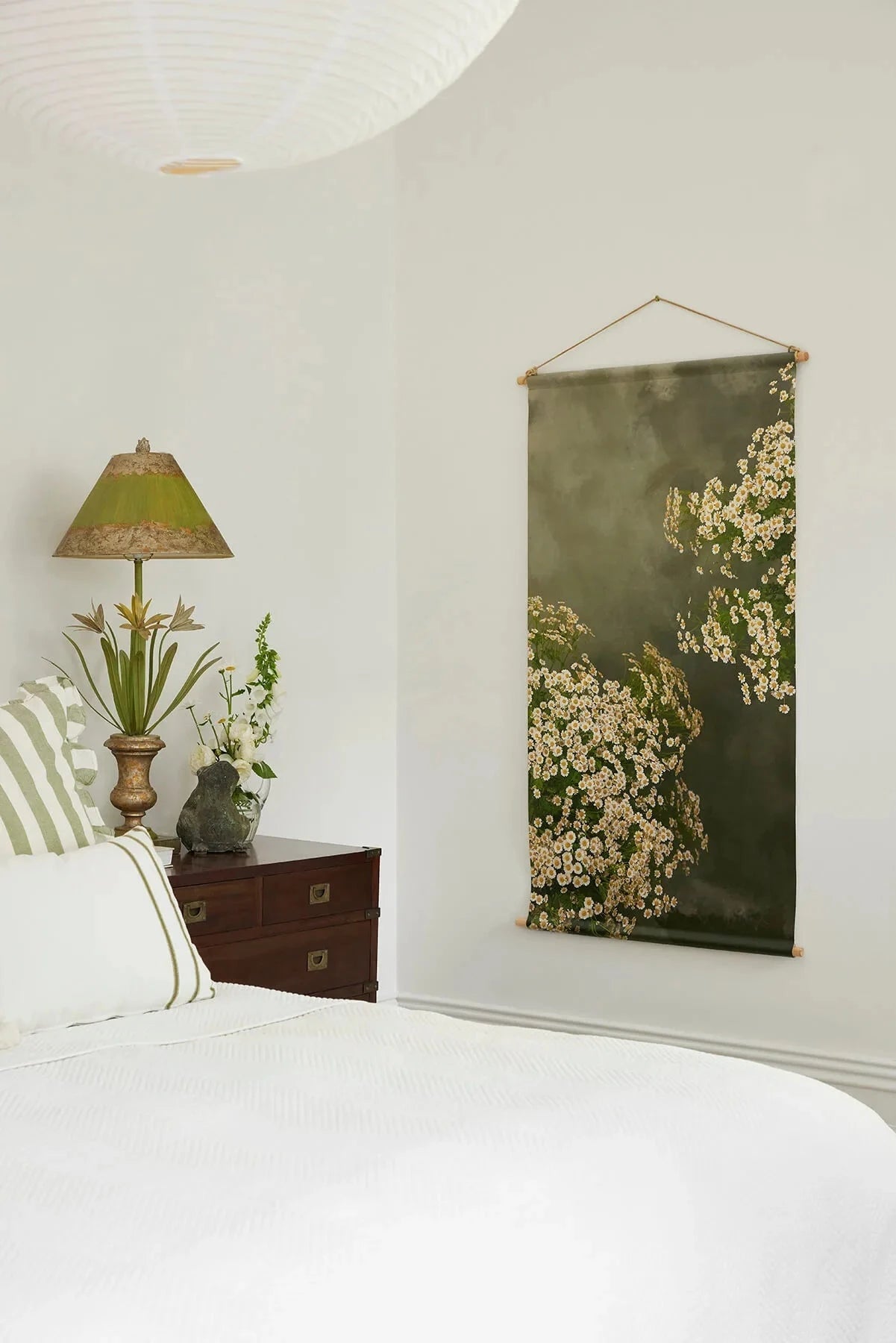
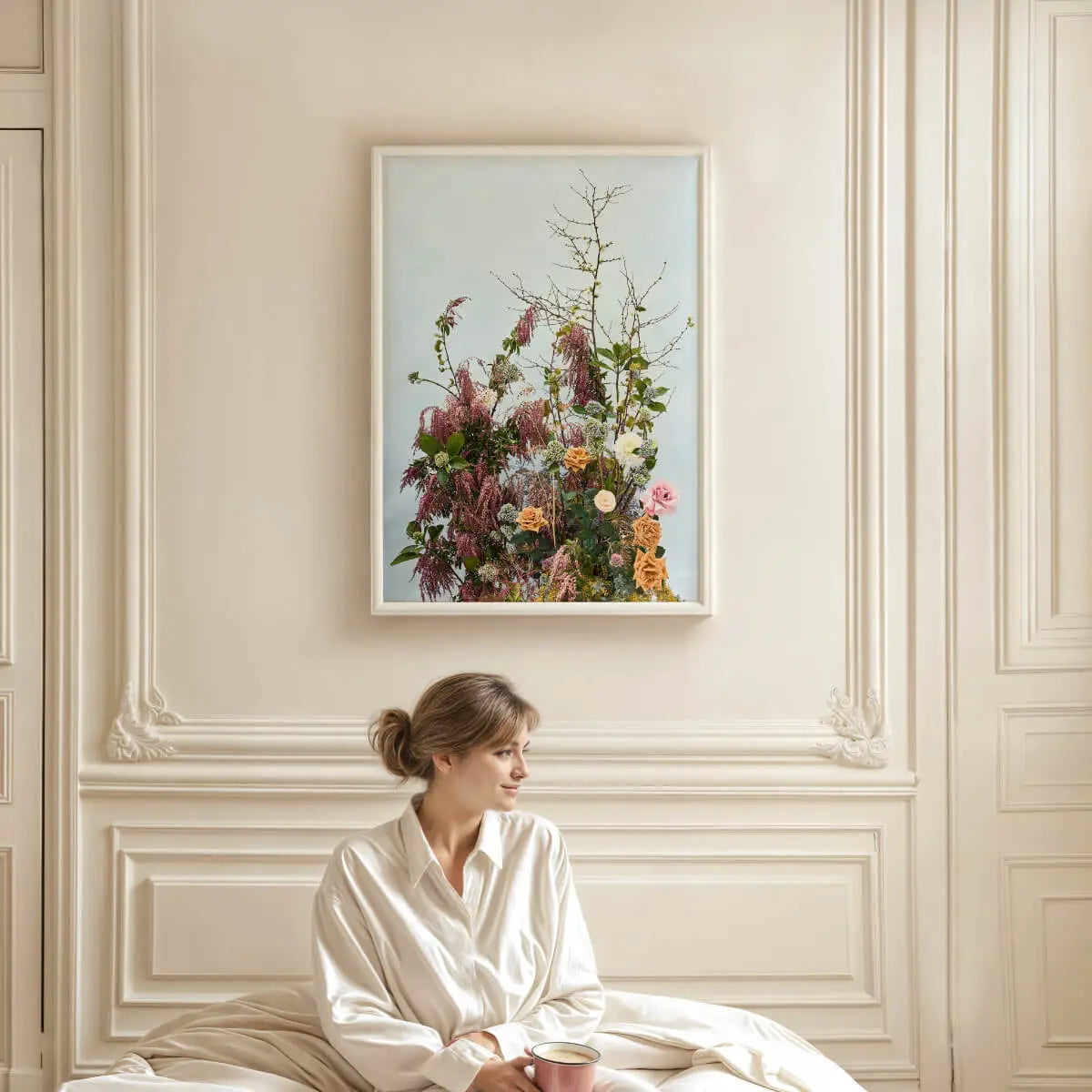
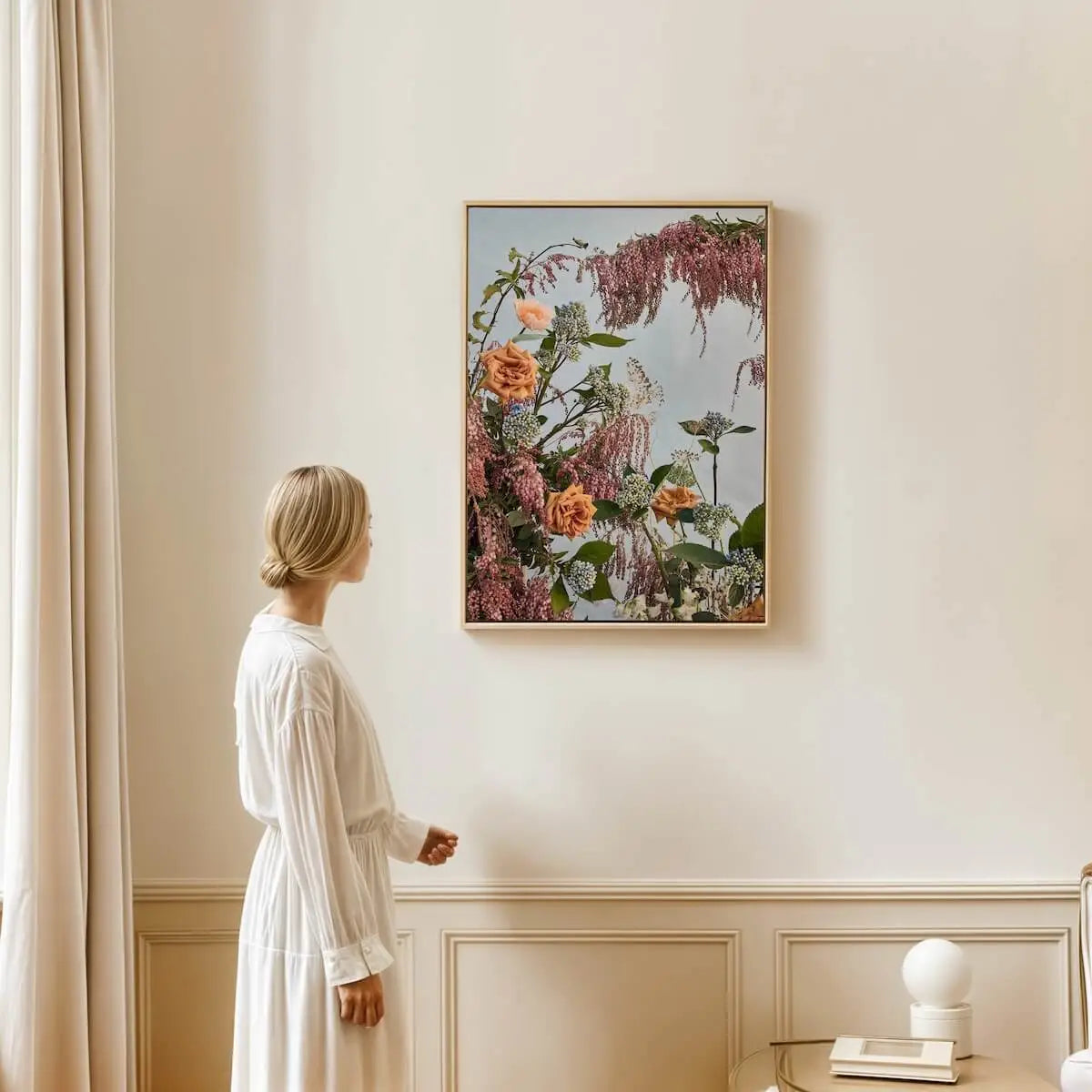
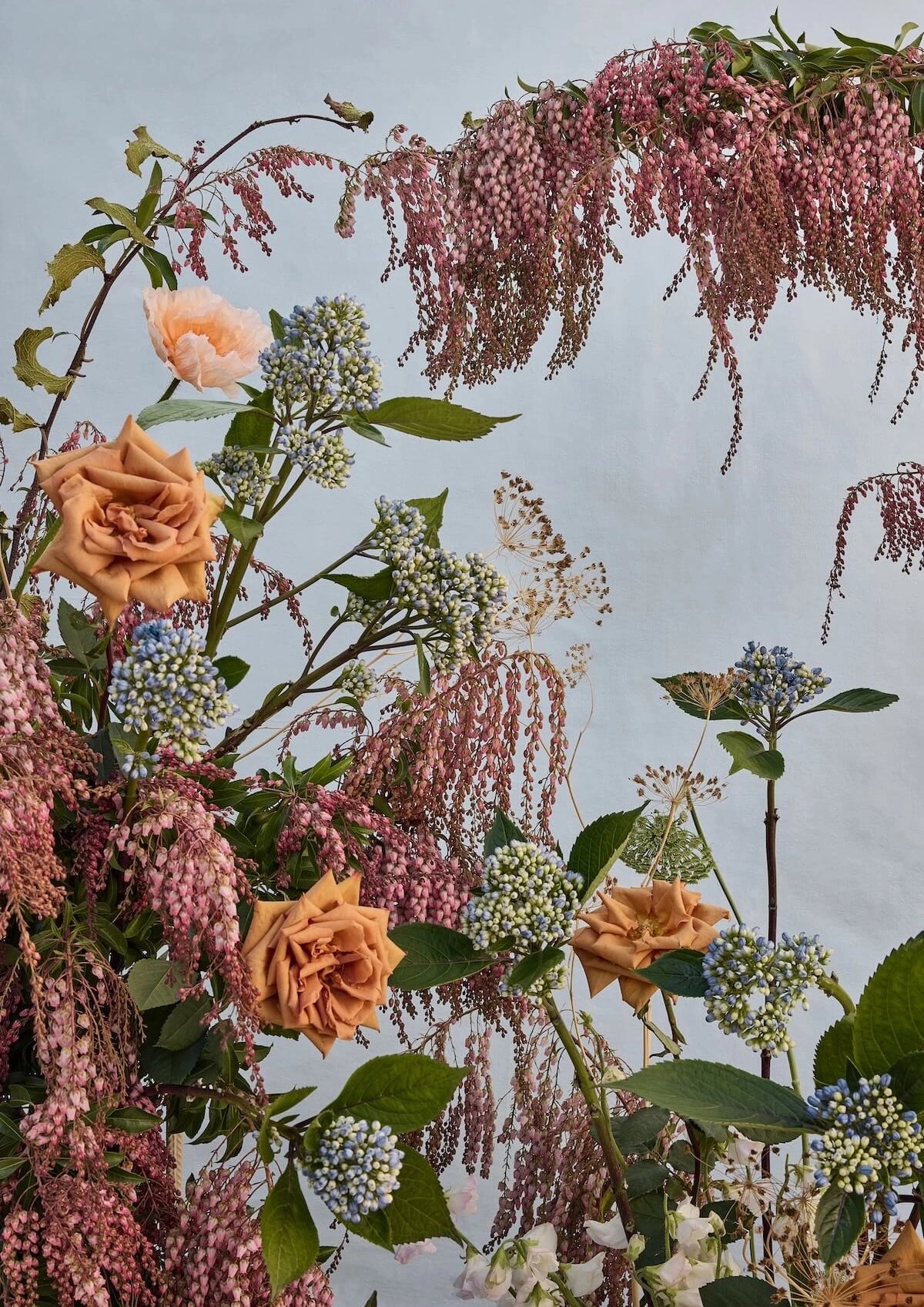
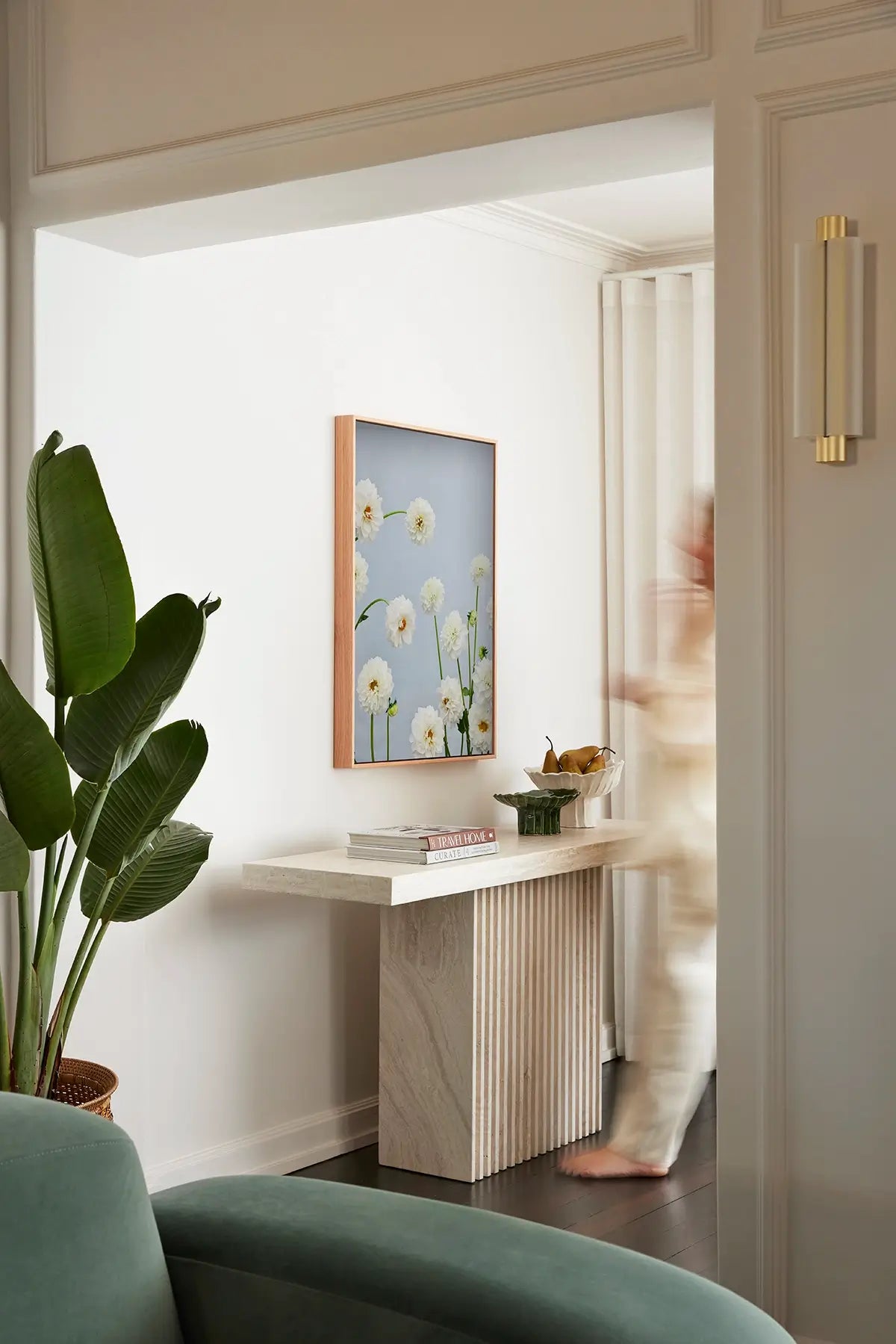
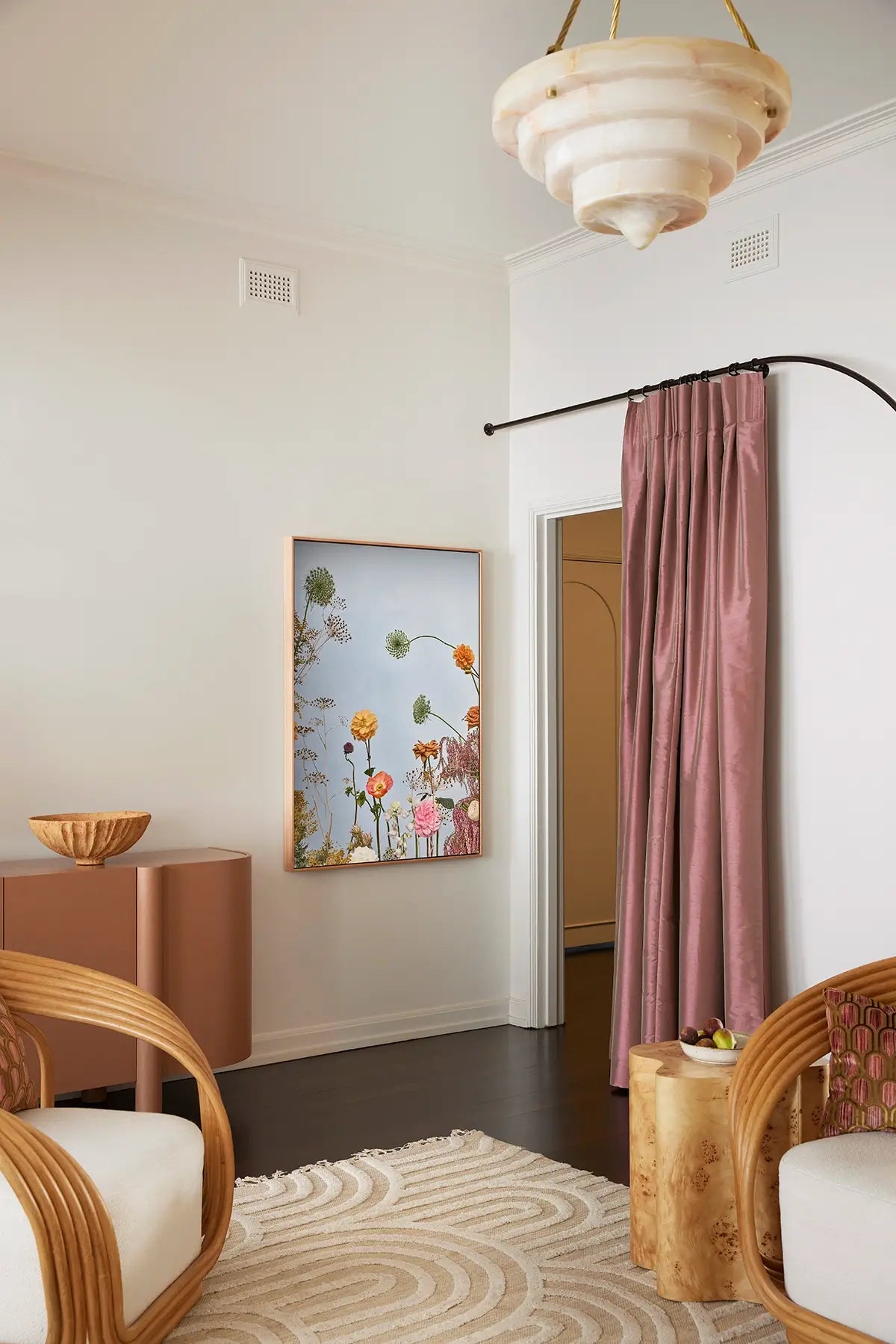
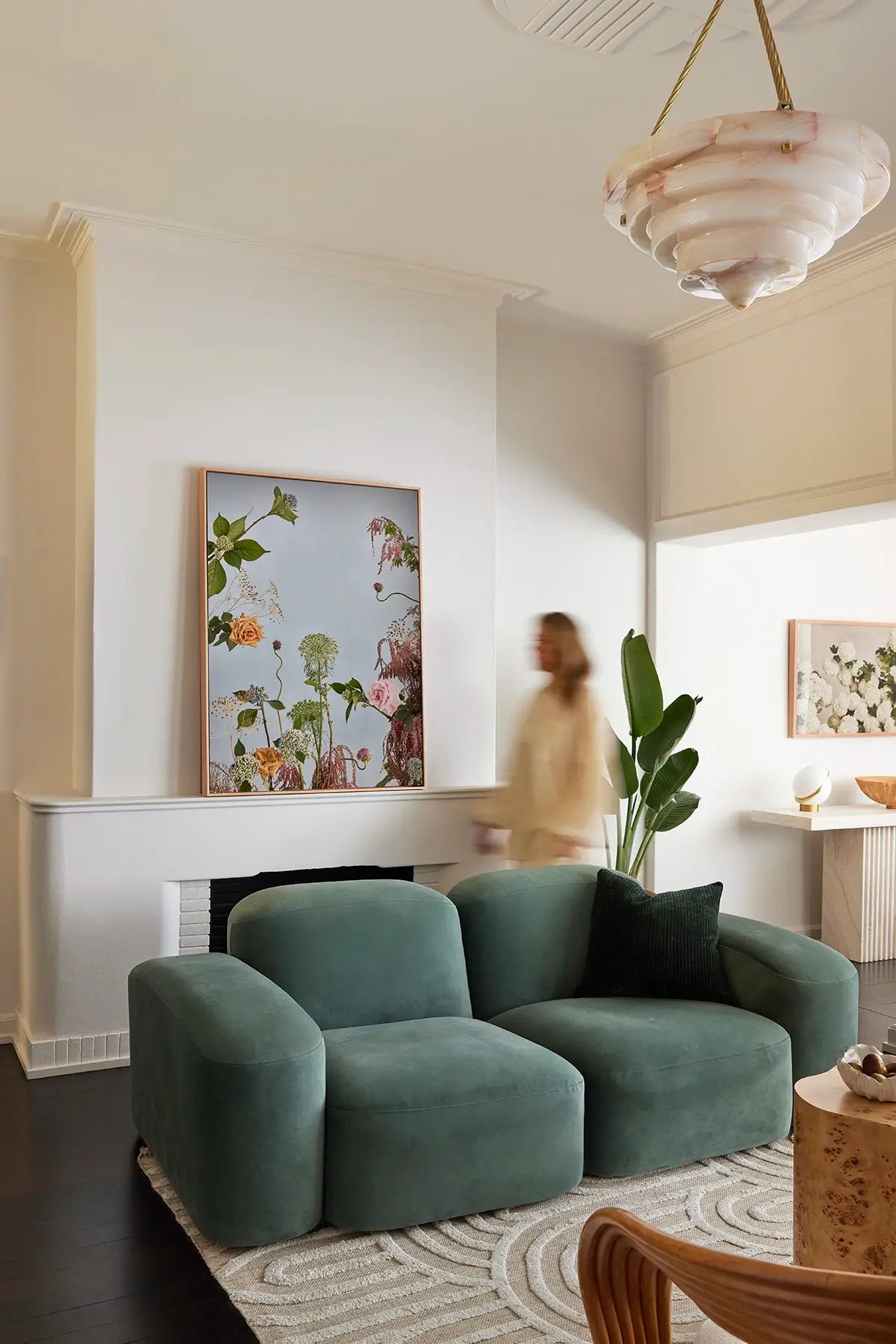
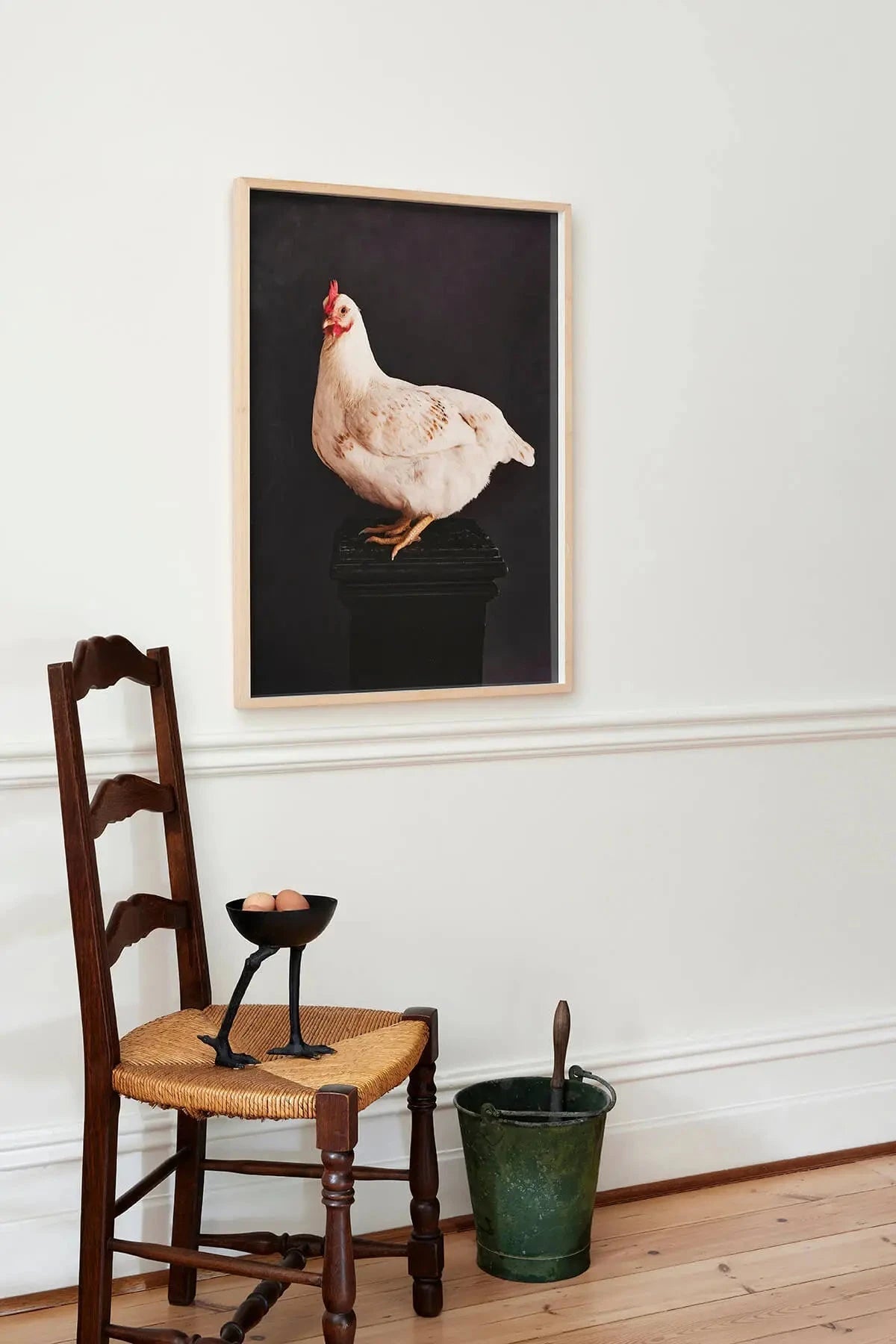
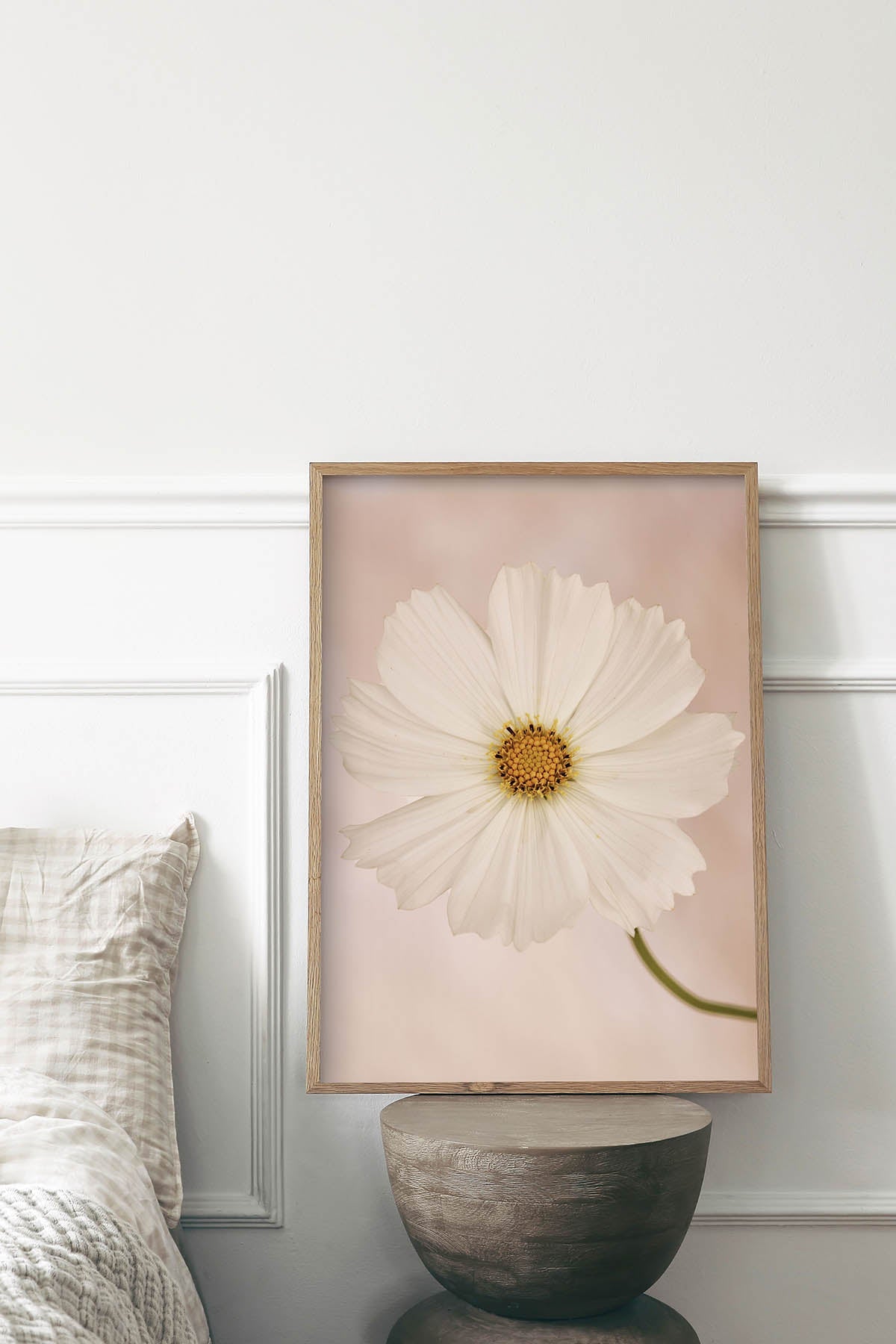
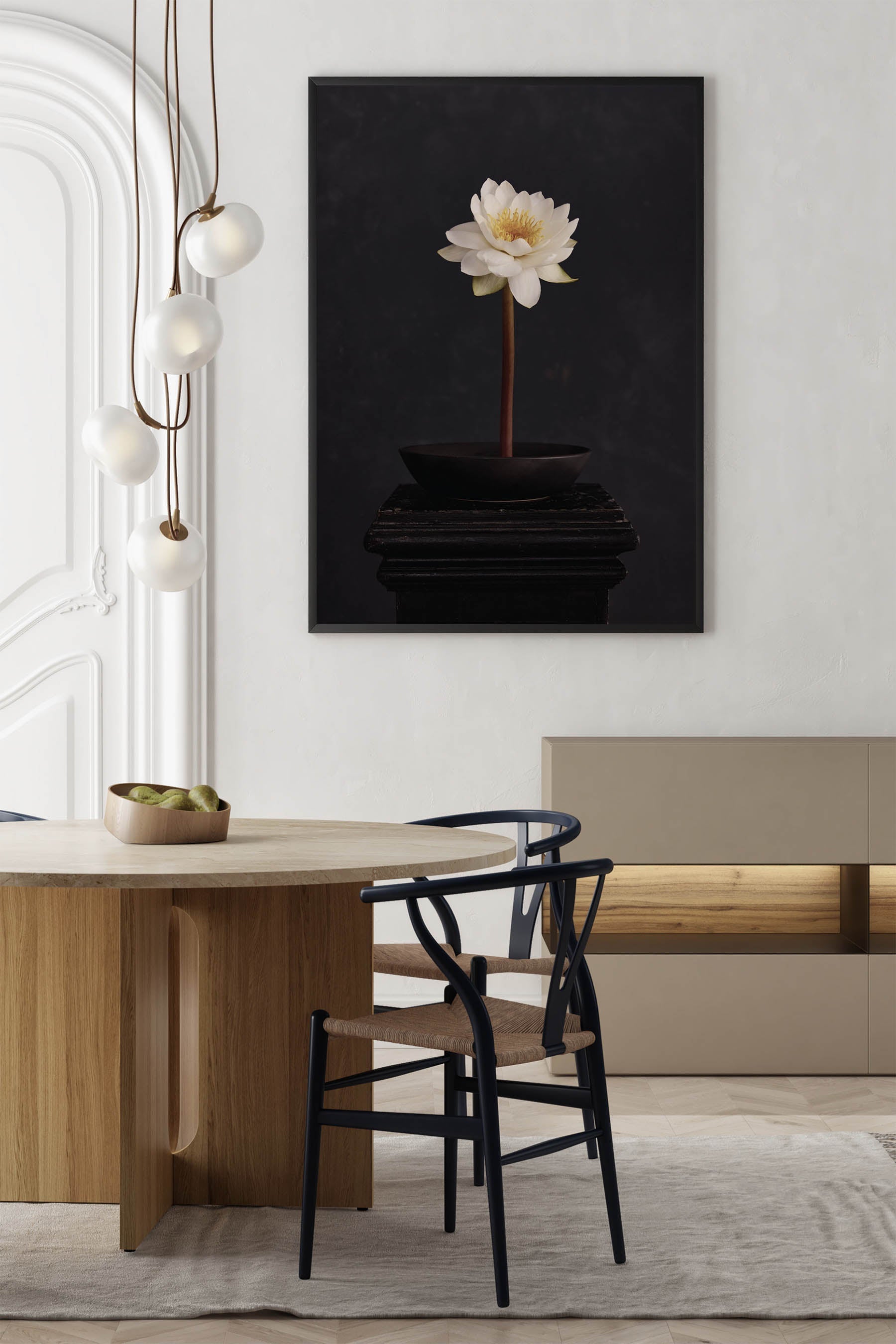
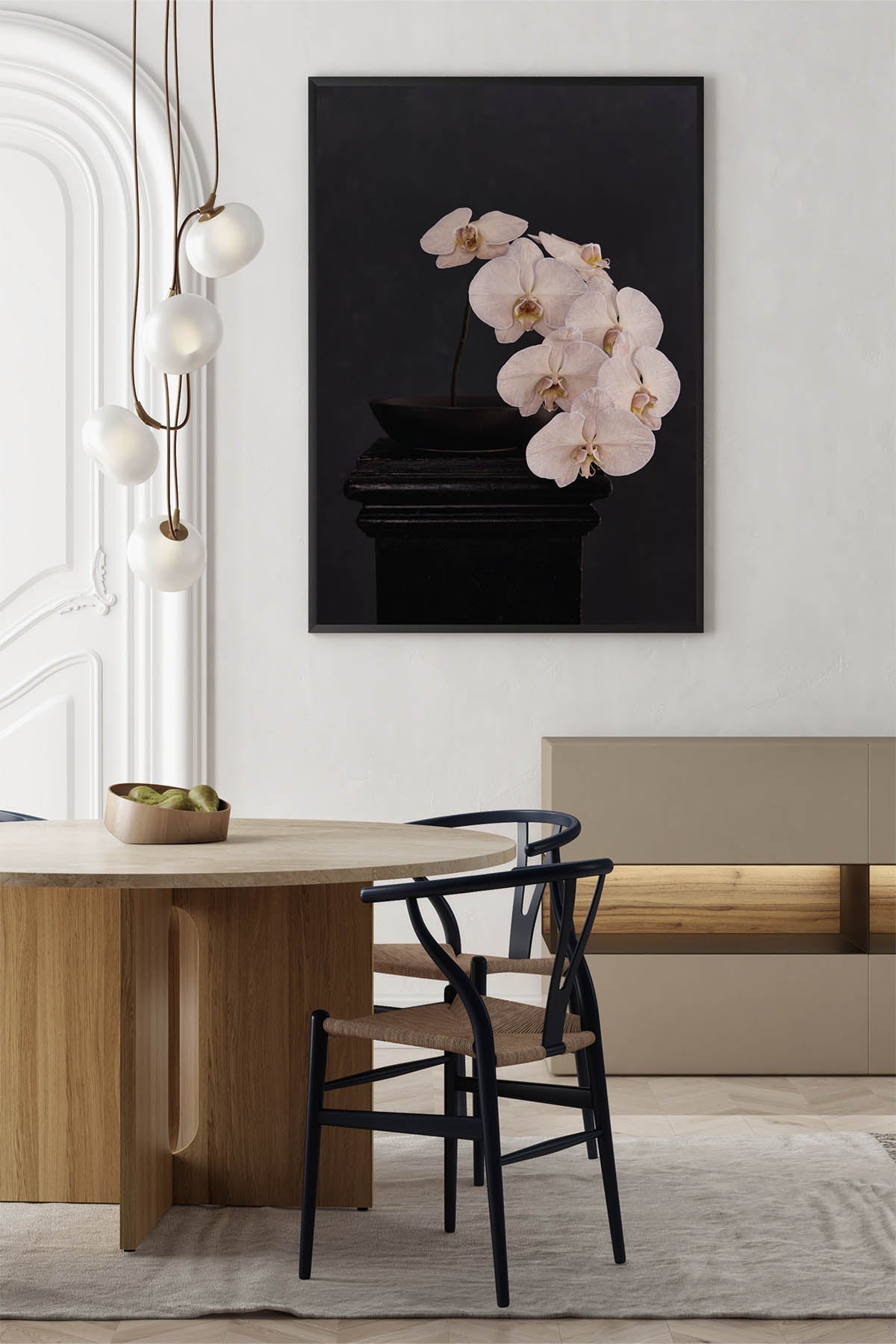
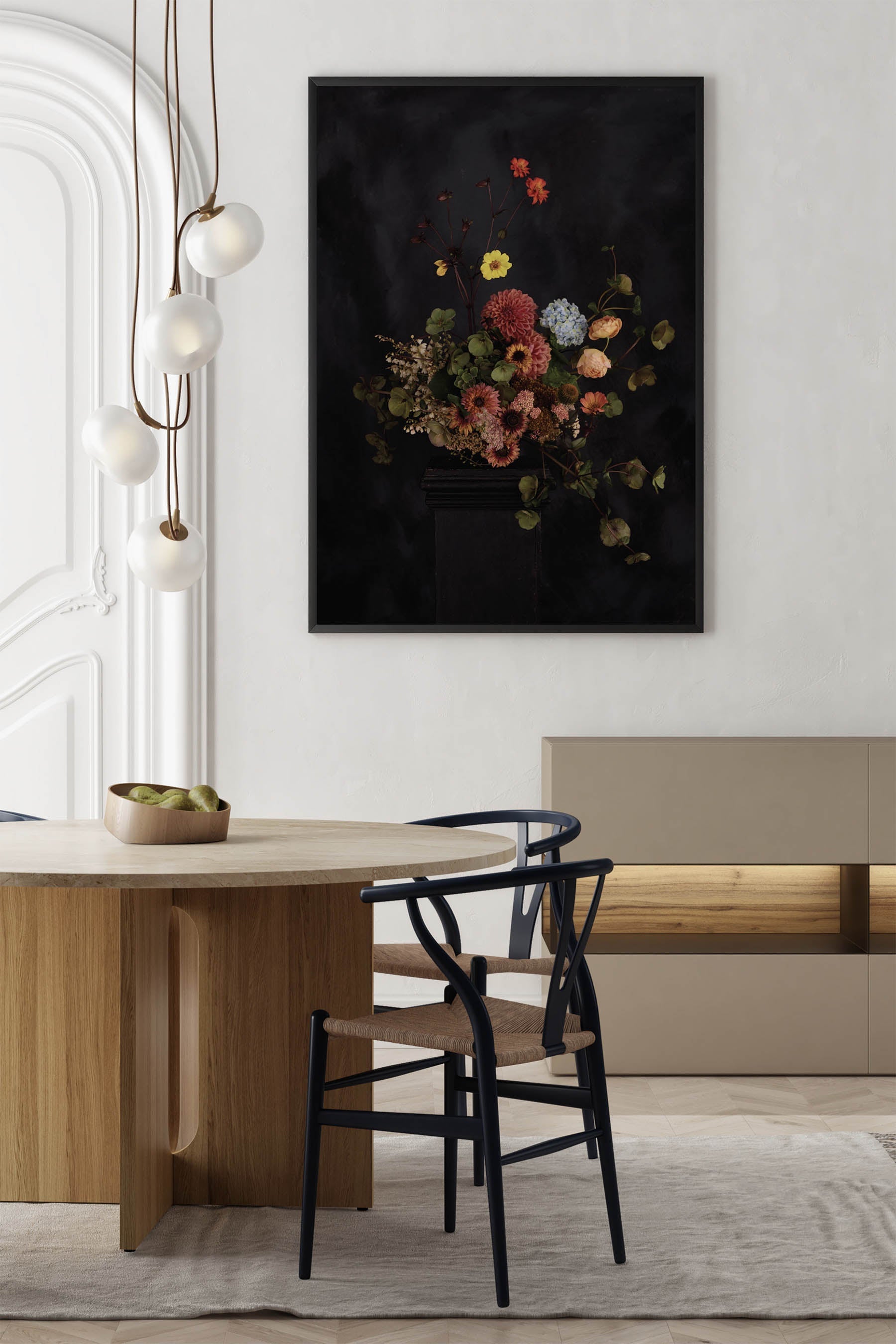
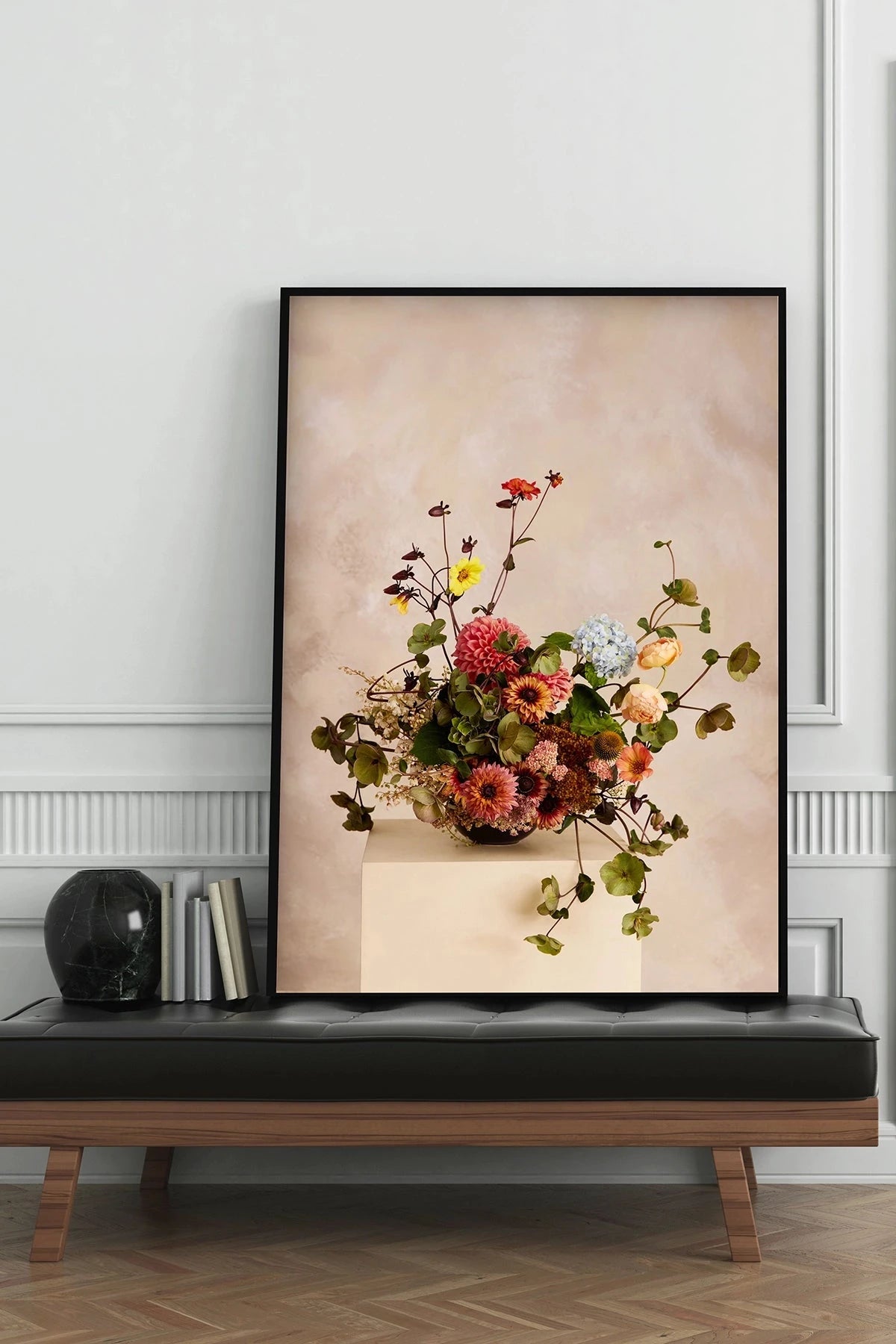
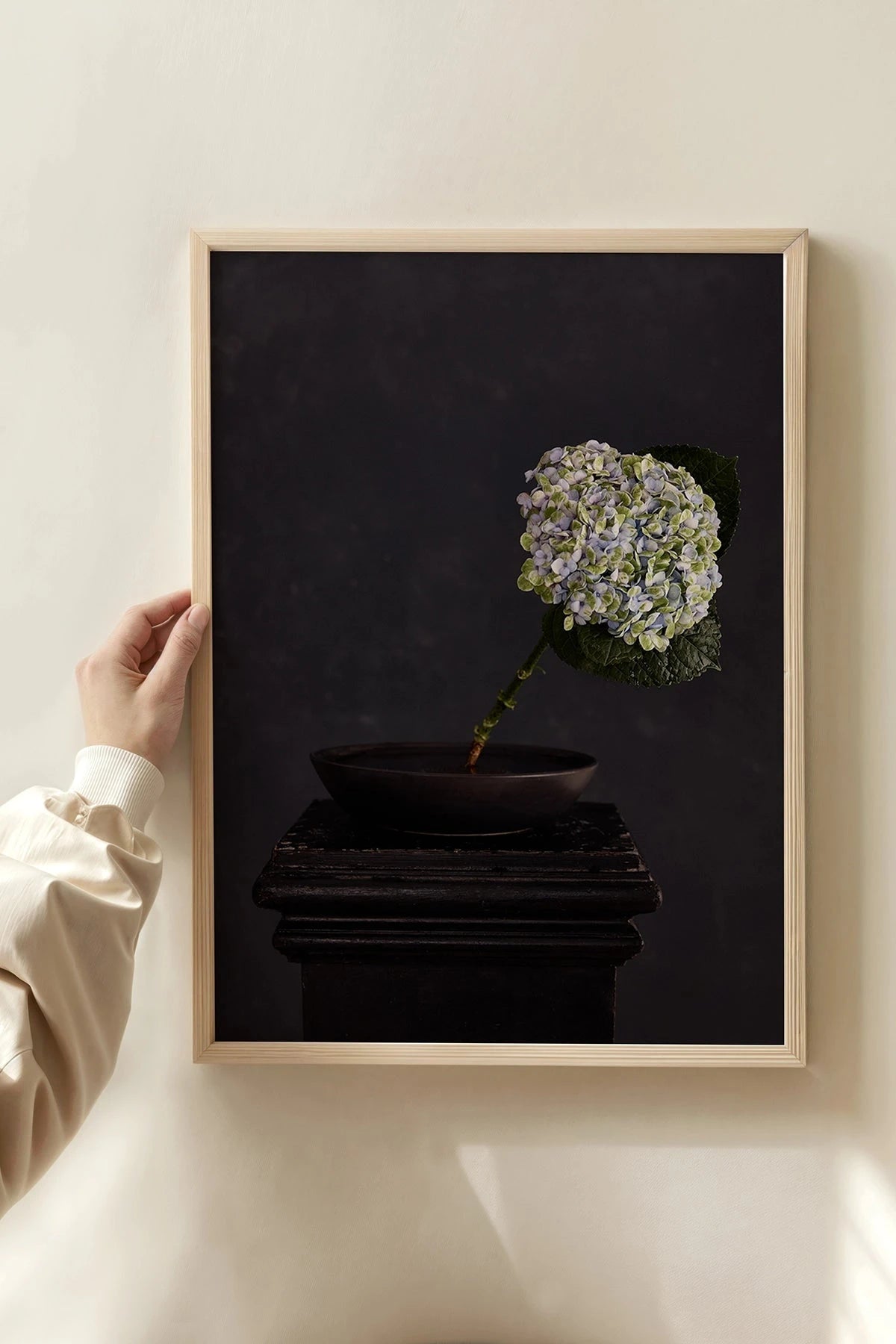
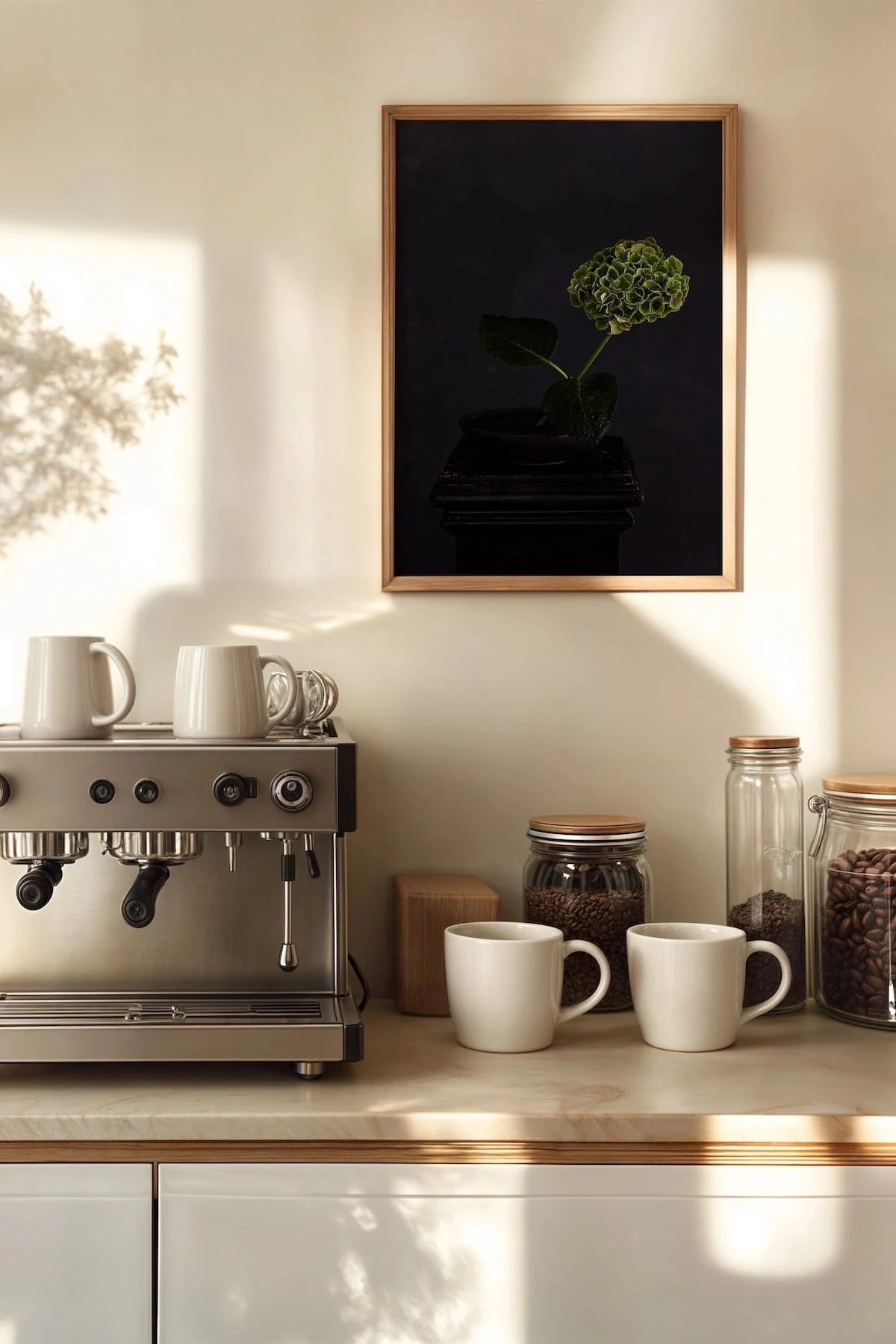
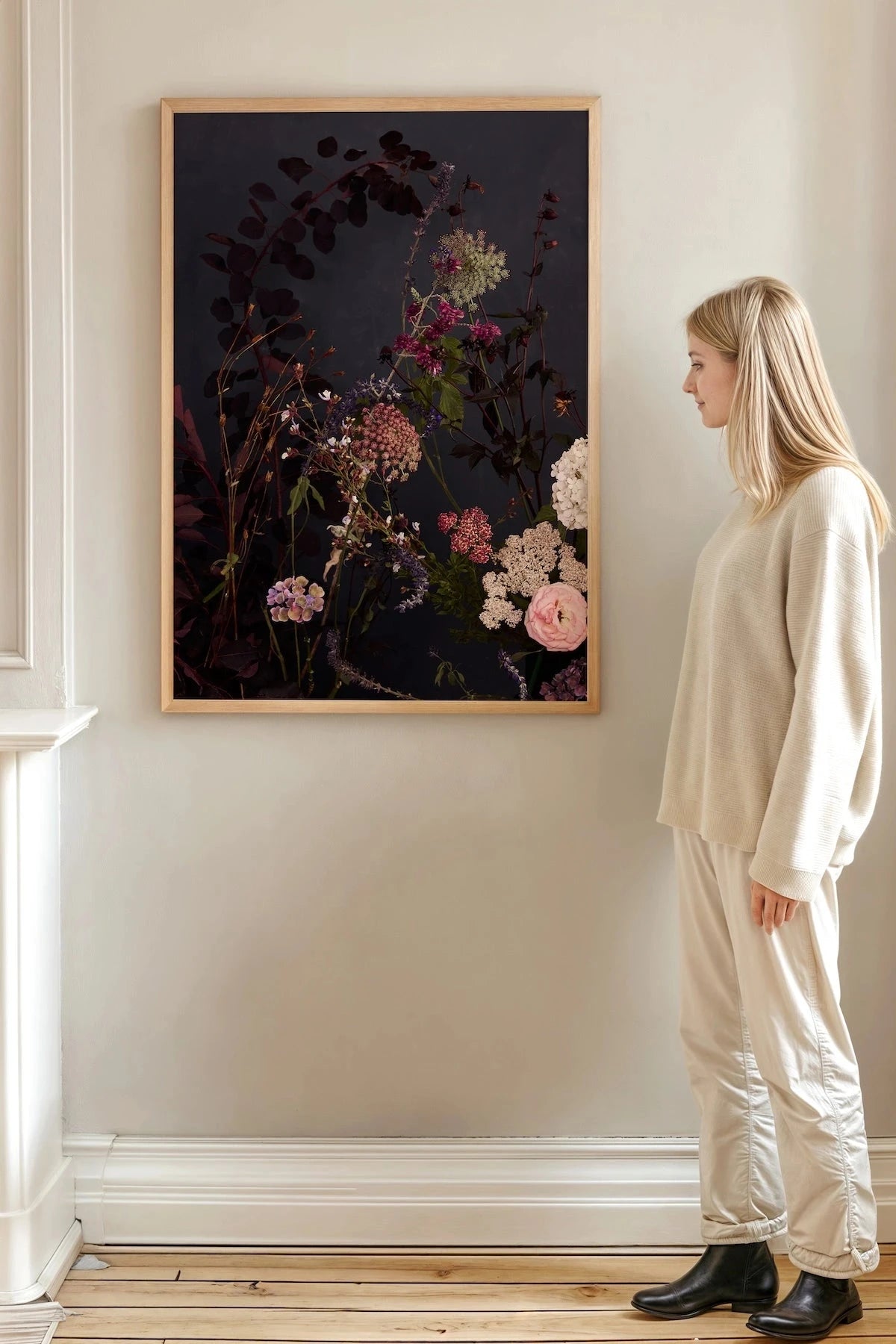
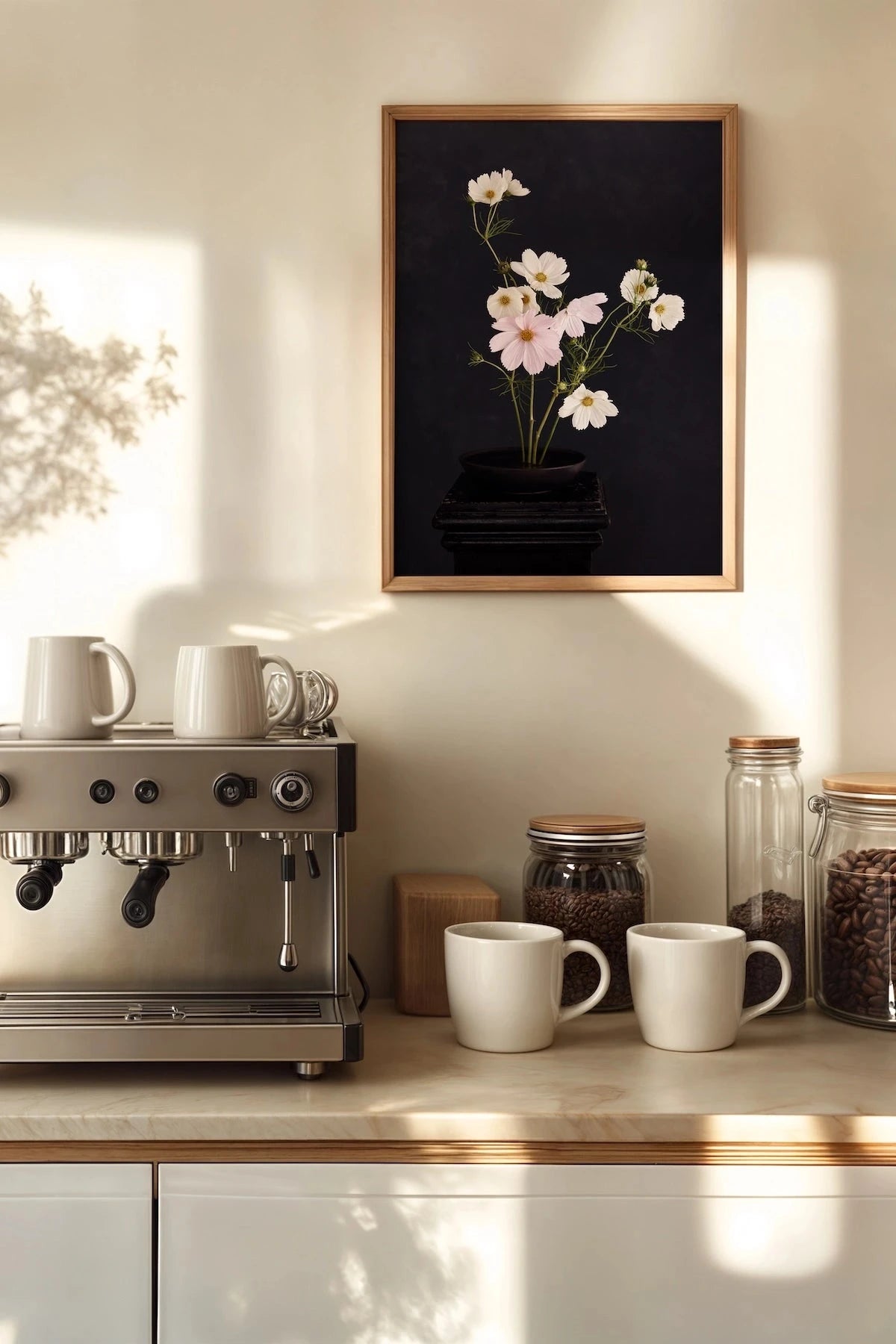
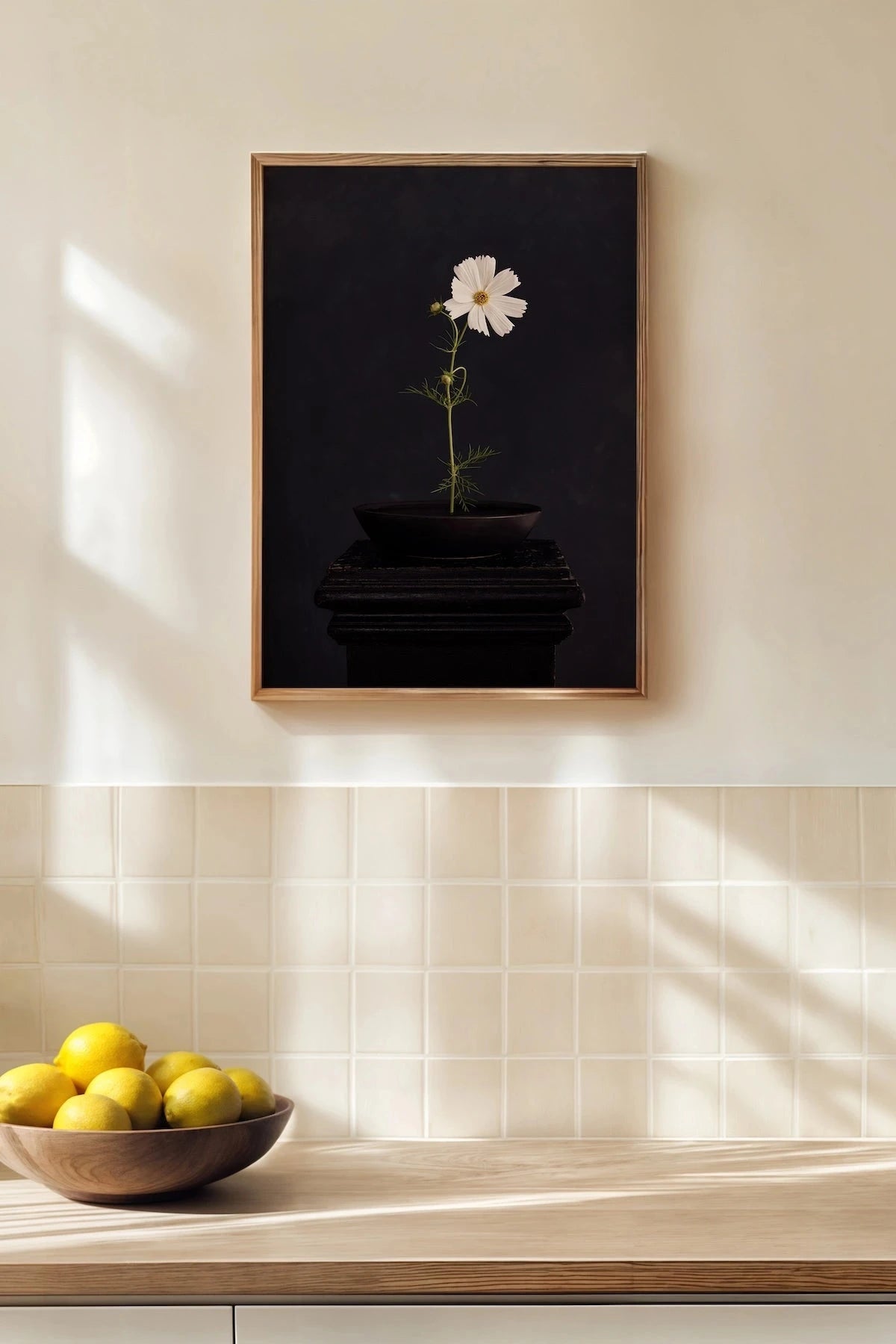
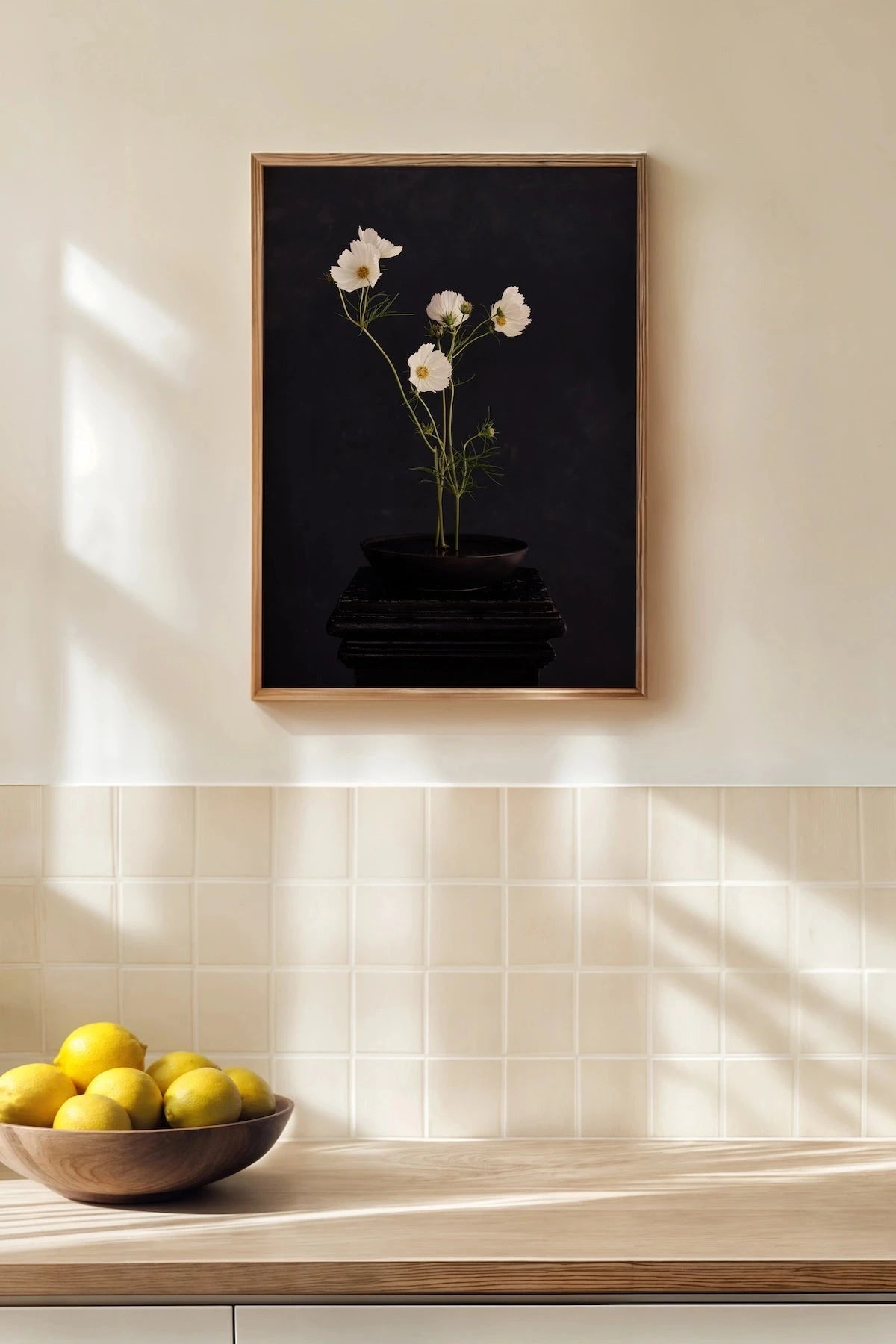
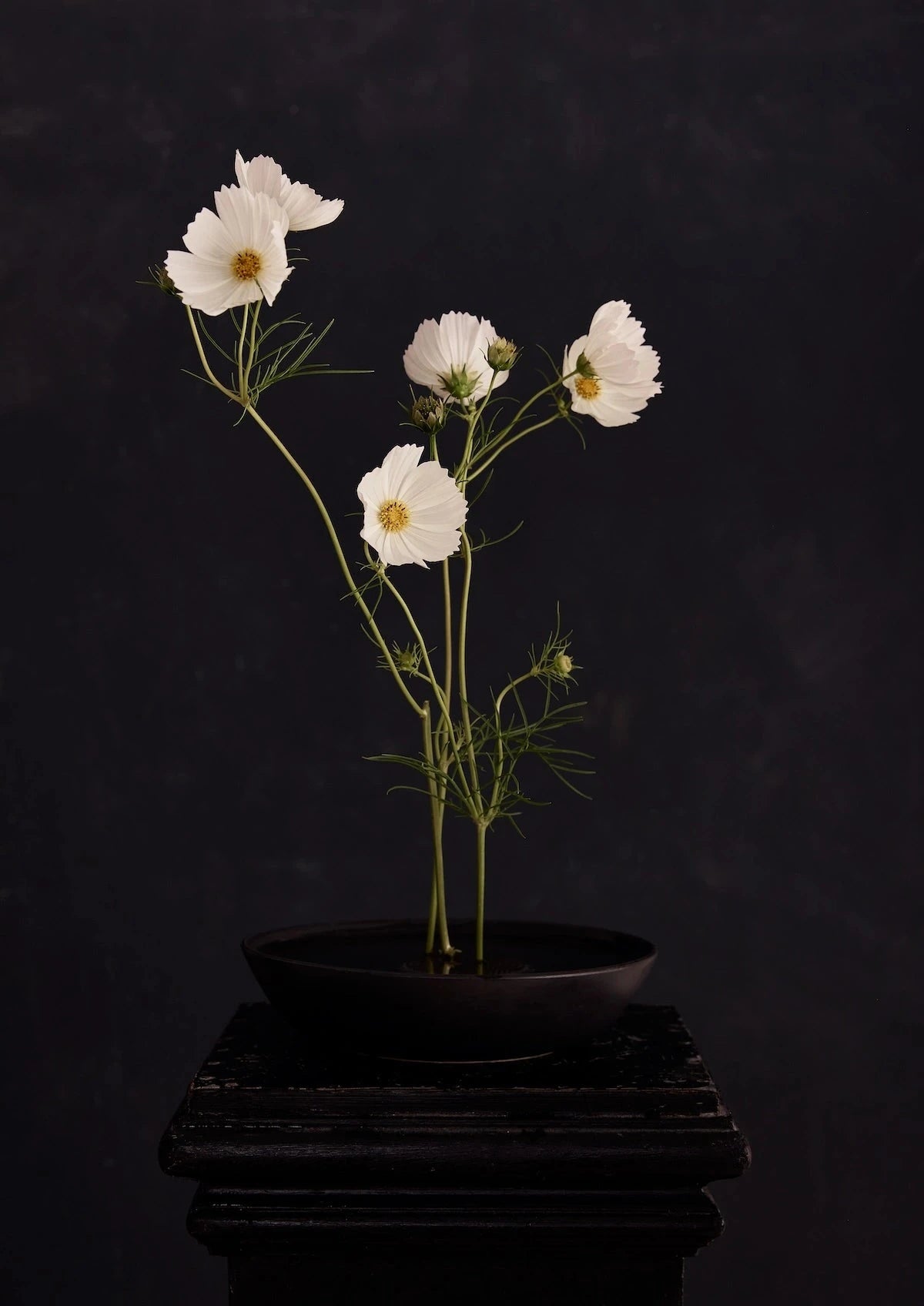
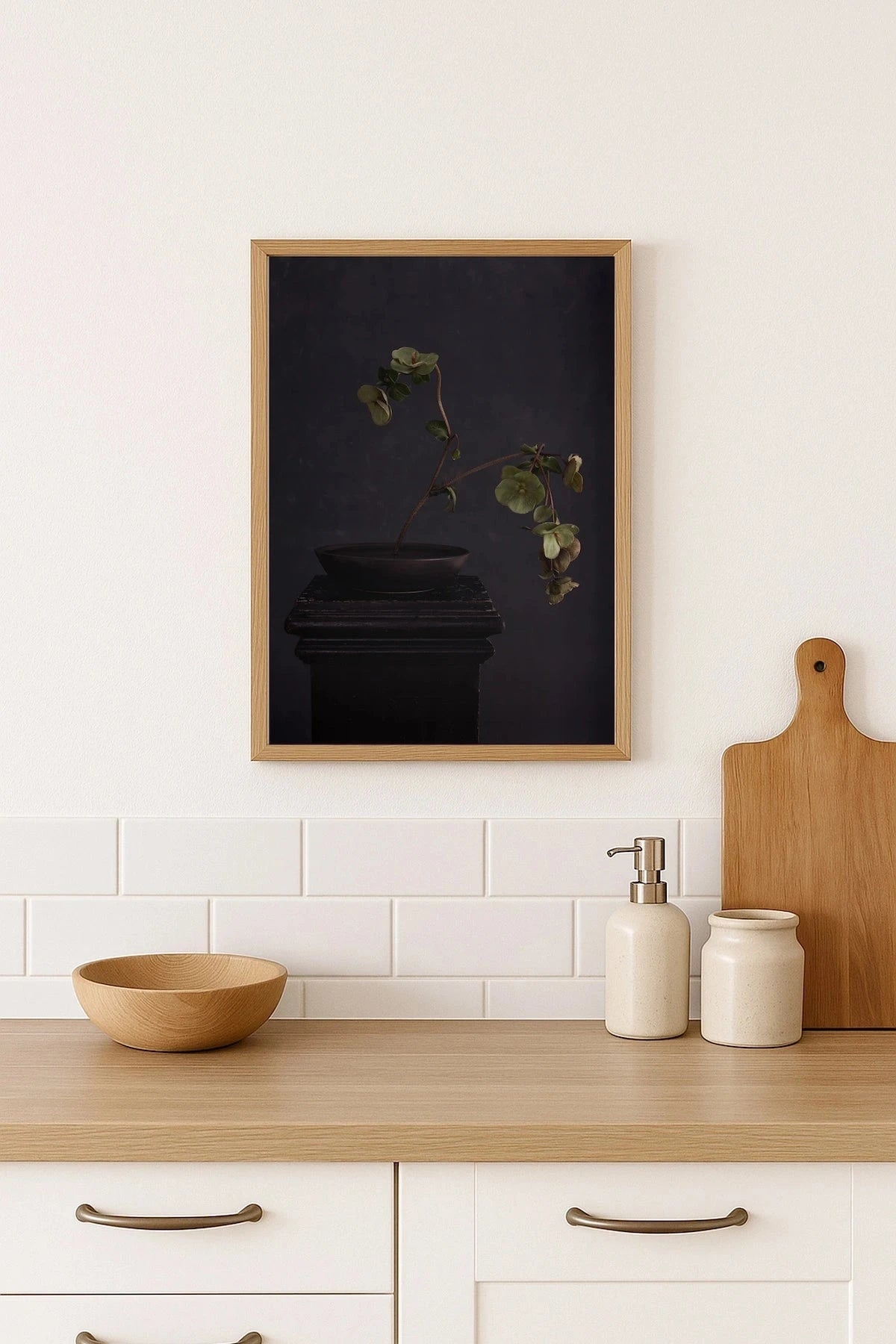
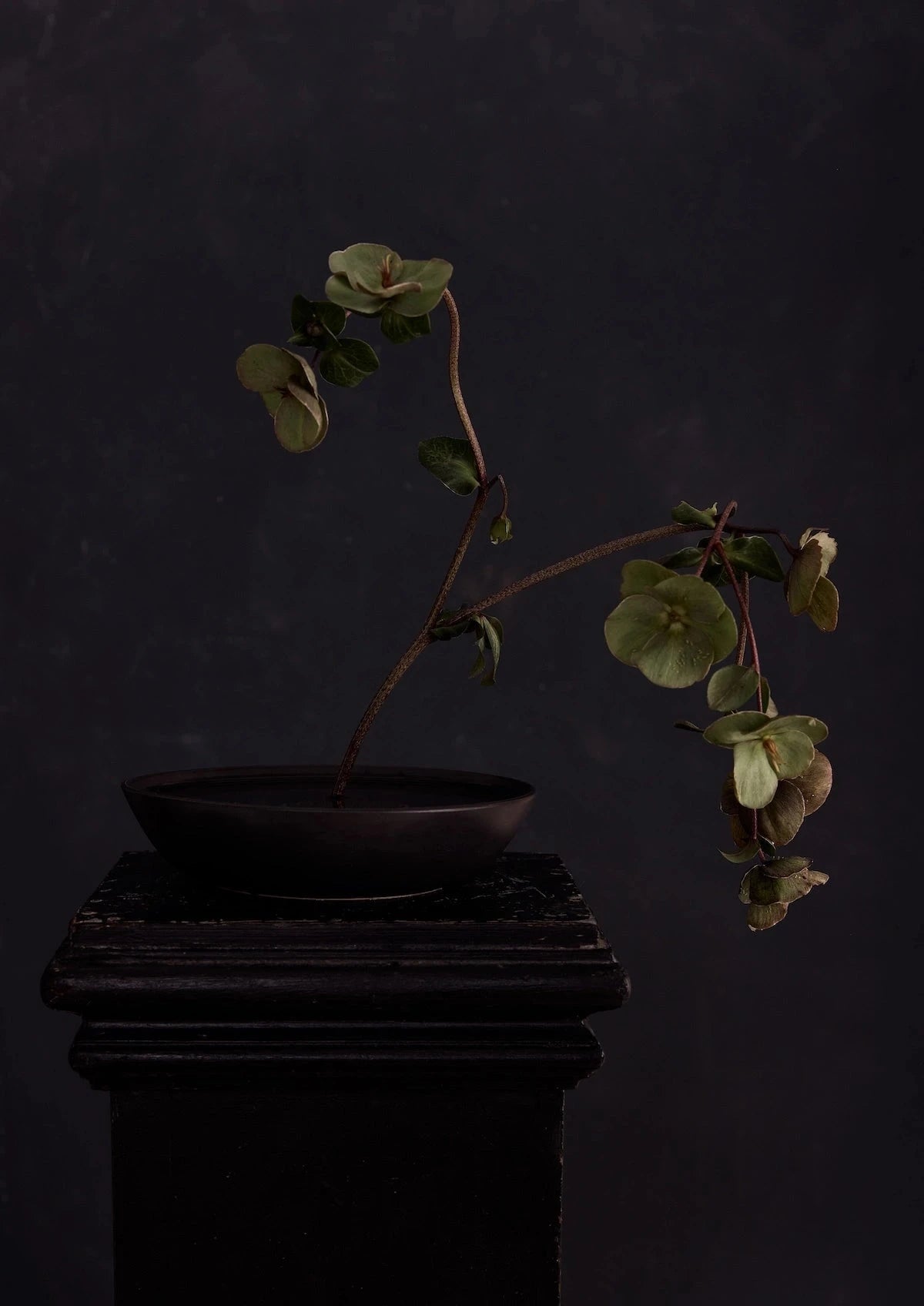
Ever wondered what a print would actually look like on your wall? Our free View in Room tool lets you see any Austin Bloom artwork in your own home — in the right size, with the right colours — before you buy.
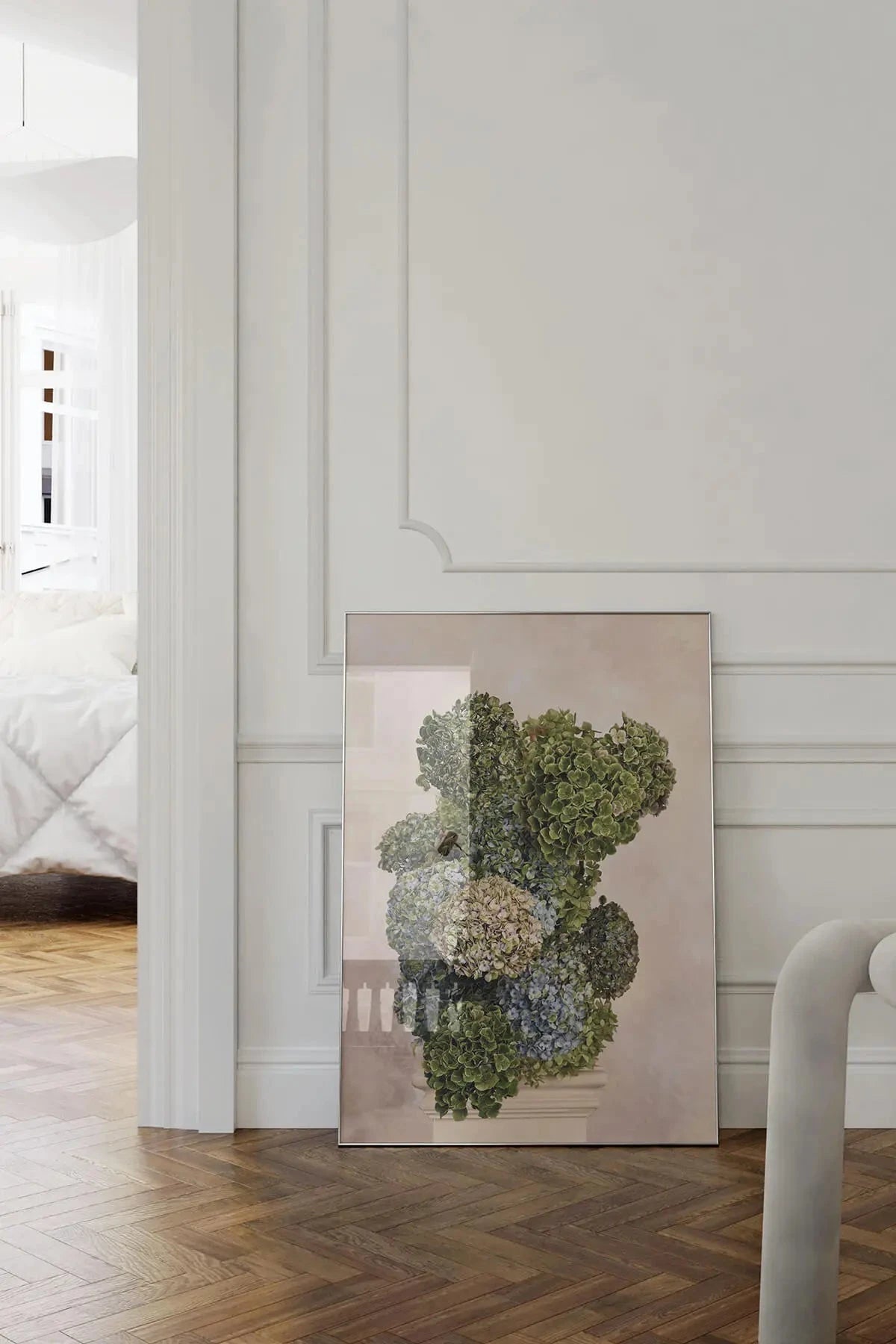
No app to download. No account to create. Just your phone and your wall.
HOW IT WORKS
The View in Room tool uses your phone's camera to place a life-size version of the artwork on your wall. You can move it around, step back to see the full effect, and try different prints until you find the one that feels right.
Here's how to use it in three simple steps.
Step 1 — Find a Print You Like
Browse our print collection on your phone and tap into any artwork that catches your eye. You'll land on the product page where you can see all the details.
Step 2 — Tap "View in Room"
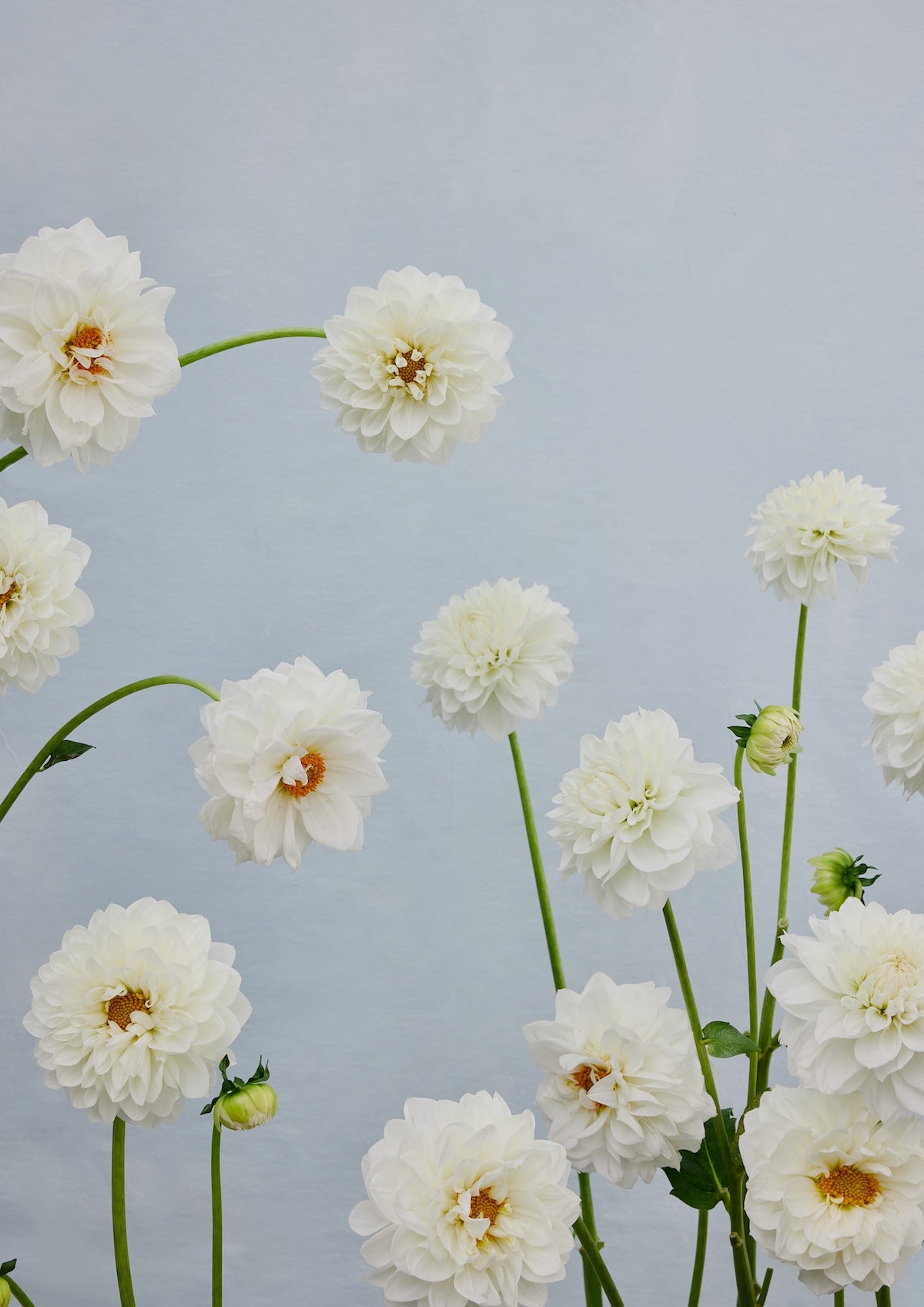
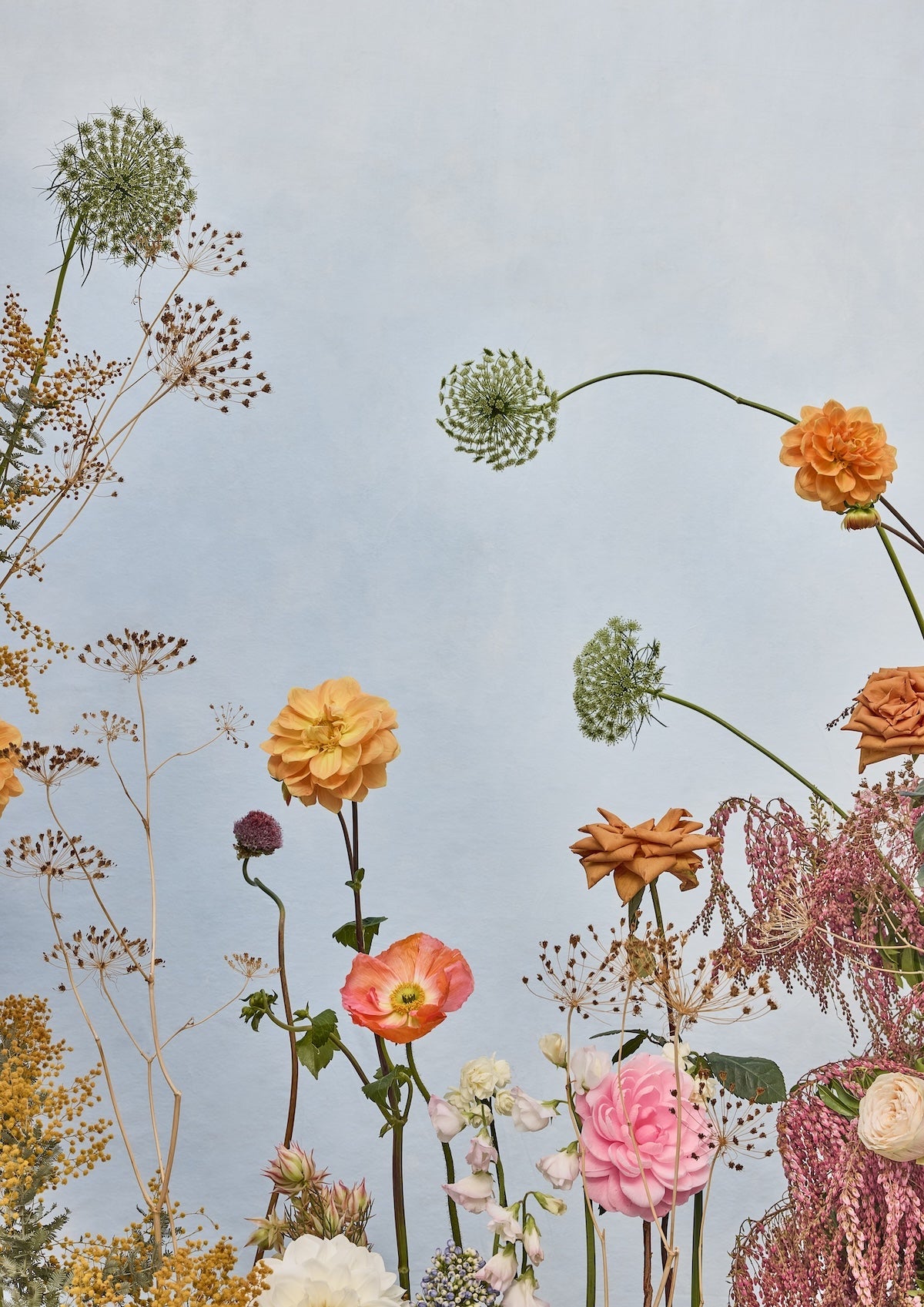
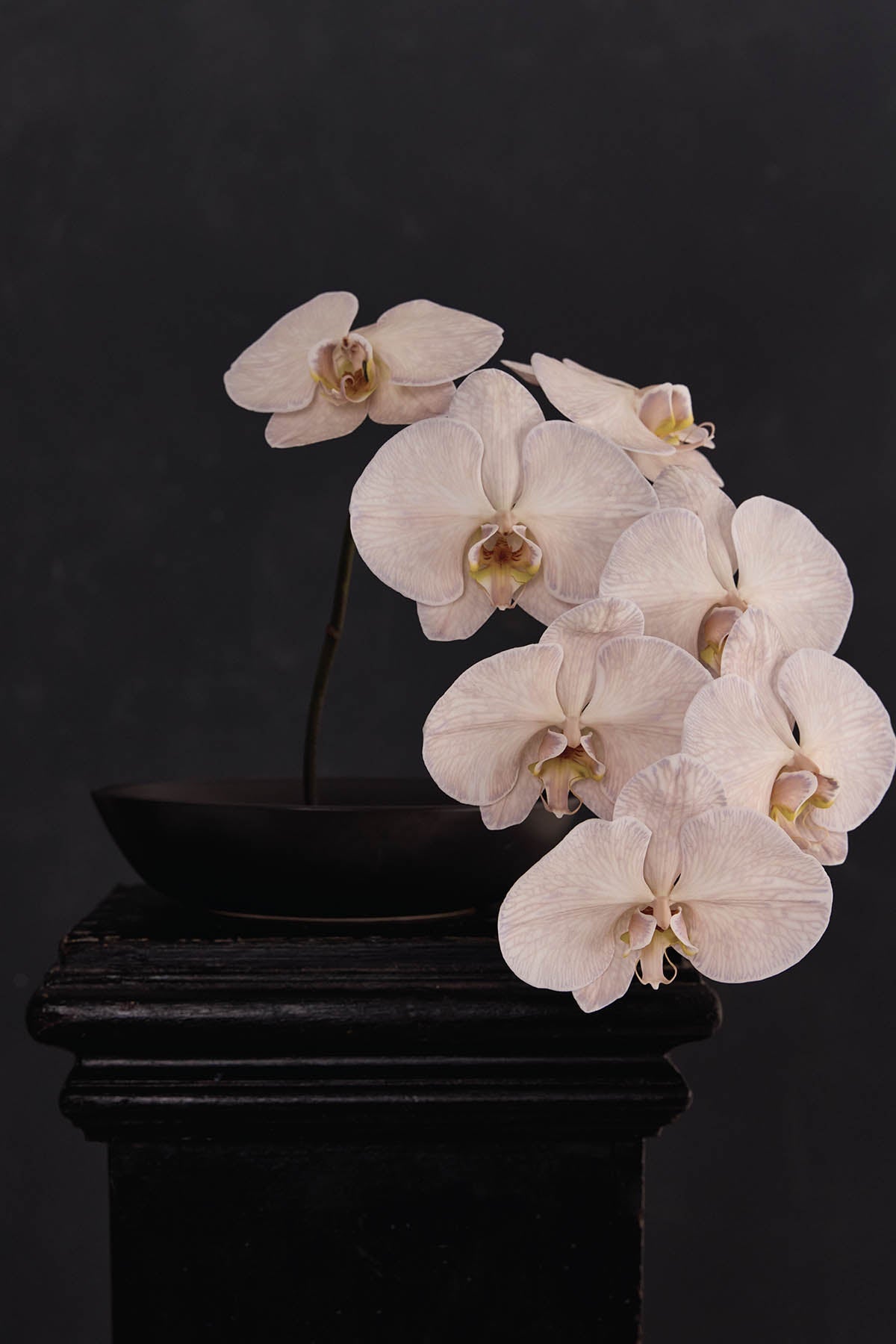
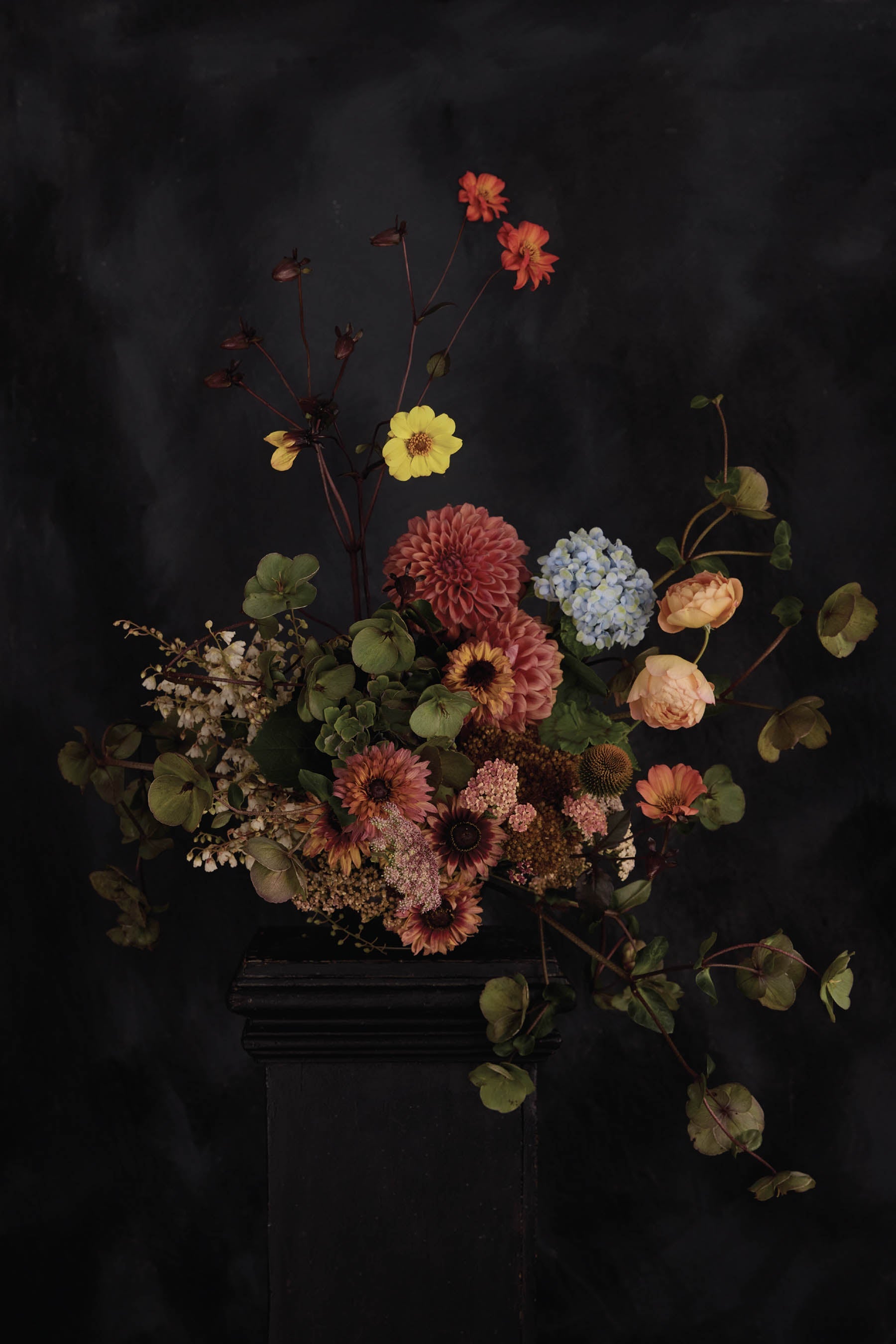
On the product page, look at the main image of the artwork. At the bottom of the image, you'll see a small button that says View in Room with a little cube icon beside it. Tap that button.
Step 3 — Point Your Phone at Your Wall
Your phone's camera will open. Point it at the wall where you'd like to hang the artwork. Move your phone slowly so it can recognise the surface — this usually takes just a second or two.
The print will appear on your wall, shown at its actual size. You can walk closer to see the detail, step back to take in the full room, or move the artwork around by tapping and dragging on your screen.
That's it. No app, no login, no fuss.
A FEW HELPFUL TIPS
Use Your Phone, Not a Computer
The View in Room tool uses your phone's camera, so it only works on a mobile phone or tablet. If you're browsing on a laptop or desktop computer, switch to your phone to try it.
Good Lighting Helps
The tool works best in a well-lit room. Natural daylight or a lamp pointed toward the wall will give you the most accurate preview of how the artwork will look.
Stand Back a Little
Start about two metres from the wall. This gives your phone enough space to recognise the surface and place the artwork at the right scale. You can always move closer once the print appears.
Try Different Sizes
Go back to the product page and select a different size (A4, A3, A2, A1 or A0), then tap View in Room again. Seeing the difference on your actual wall is one of the best ways to decide which size suits your space.
Works on iPhone and Android
The tool uses your phone's built-in augmented reality, so there's nothing extra to install. It works on most modern iPhones and Android phones. If the button doesn't appear on your device, your phone may not support AR — but you're always welcome to get in touch and we'll help you choose the right size for your wall.
WHY USE IT
Choosing art online can feel like a leap of faith. Will it be the right size? Will it suit the room? Will the colours work with your furniture and walls?
The View in Room tool takes the guesswork out of it. You can see exactly how a print will look in your space — on your dining room wall, above your bed, in the hallway — before you place your order. It's the closest thing to trying before you buy.
And because every Austin Bloom print is handmade to order on museum-grade materials, you can feel confident that what arrives at your door will look just as good as what you saw on your screen.
NEED A HAND?
If the tool isn't working on your phone, or you'd simply like some personal guidance on choosing the right artwork, size or medium for your space, we're here to help.
Book a free styling consultation — we offer complimentary virtual consultations, and in-home visits for customers in the Adelaide area.
You can also browse our Sizing Guide and Pairing Guide for more tips on getting the right fit.
With love,
Stu and Estée x